Summary
Compact and Continue always fails with COMPACTION FAILED error; details tab unresponsive
Environment
- Maestro version: 0.16.16
- Operating system: Windows (Windows 10 Home, 10.0.26200)
- Install source: Packaged build (release build or locally packaged)
- Agent/provider involved: Not provided
- SSH remote execution: Not provided
Steps to Reproduce
- Open any assistant session (Claude or Codex) with enough context to trigger compaction. 2. Click 'Compact and Continue'. 3. Observe immediate failure toast in bottom-right corner. 4. Attempt to click the details tab that appears.
Expected Behavior
Compact and Continue should successfully compact the context, allowing the conversation to continue. If it fails, the referenced details tab should be clickable and show actionable error information.
Actual Behavior
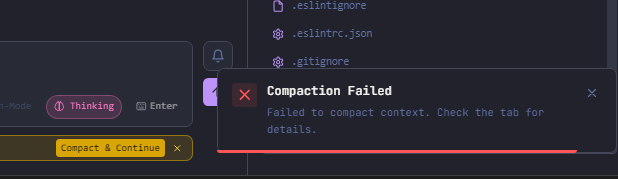
Compact and Continue immediately fails with a toast notification: 'COMPACTION FAILED - Failed to compact context. Check the tab for details.' The details tab that appears is completely unresponsive — clicking it does nothing and it shows no content.
Additional Context
Issue reproduces on both Claude and Codex assistants. The double failure (compaction itself + broken details tab) means there is no way for the user to diagnose or work around the problem.
Screenshots / Recordings

Summary
Compact and Continue always fails with COMPACTION FAILED error; details tab unresponsive
Environment
Steps to Reproduce
Expected Behavior
Compact and Continue should successfully compact the context, allowing the conversation to continue. If it fails, the referenced details tab should be clickable and show actionable error information.
Actual Behavior
Compact and Continue immediately fails with a toast notification: 'COMPACTION FAILED - Failed to compact context. Check the tab for details.' The details tab that appears is completely unresponsive — clicking it does nothing and it shows no content.
Additional Context
Issue reproduces on both Claude and Codex assistants. The double failure (compaction itself + broken details tab) means there is no way for the user to diagnose or work around the problem.
Screenshots / Recordings