Thank you to everyone who contributed to OmniWM. Your ideas and code made a real difference.





Small demo, not fully showing everything, gif recorded at 30fps due to size, some stuff is now more refined and better as some gifs might be outdated, features shown:
- Real quake/sticky terminal using ghostty's libghostty
- Best-effort macOS native-tab replacement support
- IPC/CLI
- Scrathpad/Sticky windows of any app
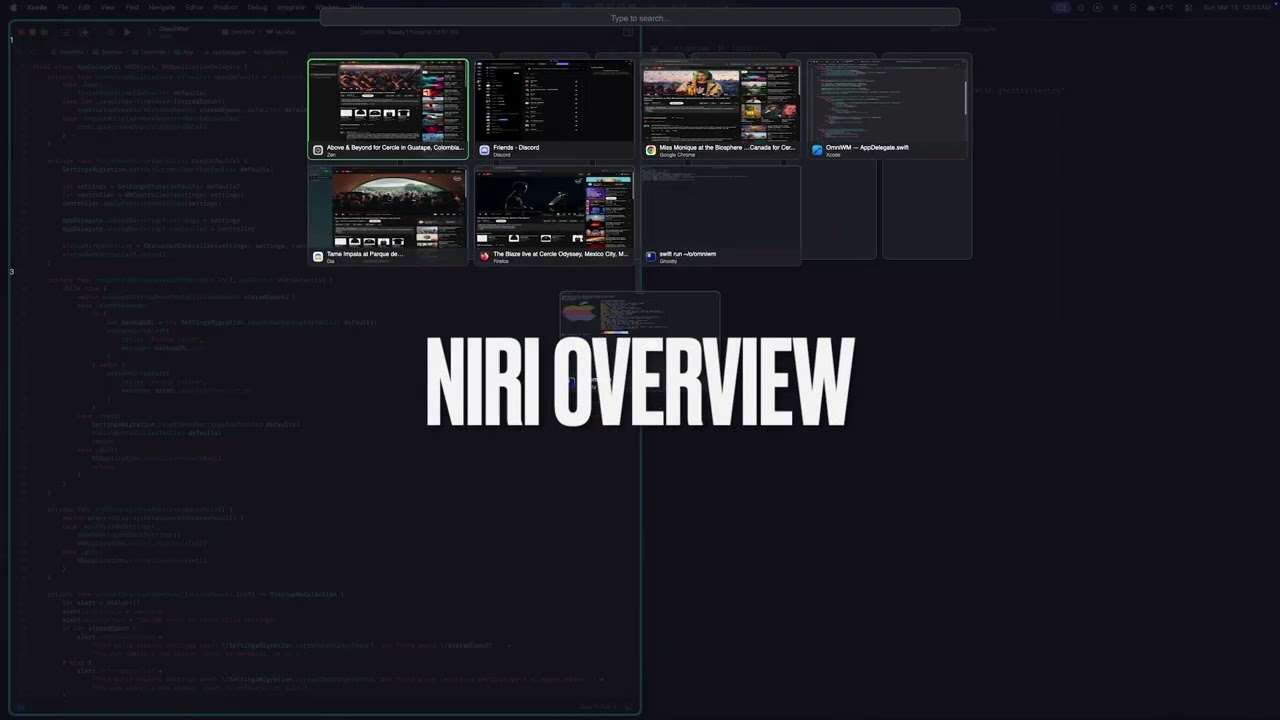
- Niri Overview
- Unified command palette for windows and app menus
- App menu anywhere
- Niri tabbed columns and Dwindle tile groups
- Niri and Dwindle layout
- Hide/unhide status bar icons (Similar to Ice Bar)
- Keep awake (Similar to Caffeine)
- Interactive workspace/app icon bar
- A lot more features not show in the video.
- Gestures/Trackpad - Magic Mouse and trackpad gestures have not been locally validated without matching hardware, but no issues have been reported.
- Dwindle group restore - Group membership and tab order are runtime layout state and are not restored after OmniWM restarts.
OmniWM is built for high responsiveness and smooth, crisp animations.
- Private APIs - OmniWM leverages Apple's private APIs where ever technically possible in order to reduce latency and improve window management responsiveness.
- Refresh rate aware animations - OmniWM targets true display refresh pacing (for example 60/120/144Hz) for animations.
- No SIP disable required - OmniWM does not require System Integrity Protection (SIP) to be disabled and never will.
- Always notarized official releases - Official OmniWM release builds are developer signed and notarized by Apple and will stay that way.
- Forever free, no limitations - OmniWM is and will remain free to use forever, with no subscriptions, feature paywalls, trial limits, or usage caps.
- macOS 26+ (Tahoe) on Apple Silicon
- Accessibility permissions (prompted on launch)
- Input Monitoring permission when using a System Hyper Trigger
- Displays have separate spaces ON (the macOS default; OmniWM pauses window management until it is enabled)
brew tap BarutSRB/tap
brew install omniwm- Download the latest
OmniWM.zipfrom Releases - Extract and move
OmniWM.appto/Applications - In System Settings > Desktop & Dock > Mission Control, turn ON
Displays have separate Spaces - Log out of macOS and log back in for that change to take effect unless you had it on already
- Launch OmniWM and grant Accessibility permissions when prompted
- To use a System Hyper Trigger, grant Input Monitoring from Settings > Hotkeys
OmniWM checks for updates by default.
- On launch, OmniWM polls the latest GitHub release at most once per day.
- Updates stay manual. OmniWM does not auto-download or auto-install a new release.
- When a newer release is available, OmniWM shows a centered popup with release notes and actions for
Open Release Page,Copy brew upgrade omniwm,Skip This Version, andNot Now. - You can control this from
Settings > General > Updatesor trigger a manual check from the status bar menu withCheck for Updates....
The documentation hub lives in docs/index.md.
- Documentation Home
- Architecture Guide
- IPC & CLI Reference
- Contribution Docs
- Canonical Contributing Guide
OmniWM ships with a bundled CLI, omniwmctl, for automation and scripting.
IPC is disabled by default. Enable Enable IPC from the menu bar before using the CLI or any automation.
For setup, installation options, commands, queries, rules, subscriptions, and security details, see docs/IPC-CLI.md.
- Launch OmniWM from your Applications folder
- In System Settings > Desktop & Dock > Mission Control, turn ON
Displays have separate Spaces - Log out of macOS and log back in for that change to take effect unless you had it on already
- Grant Accessibility permissions in System Settings > Privacy & Security > Accessibility
- Windows will automatically tile in columns
- Keep one macOS Space per display and navigate with OmniWM workspaces; extra native Spaces are tolerated (their windows are left to macOS, not tiled)
- Use the default shortcuts in
Keyboard Shortcutsto navigate between windows - Click the menu bar icon to access Settings, including
Settings > General > Updates - Use
Check for Updates...from the status bar menu whenever you want to run a manual update check - In case you freak out and don't see all your status bar icons, relax, OmniWM hides the menu-bar icons you selected in
Settings > Hidden Bar. Right-click OmniWM's status bar icon to open the Hidden Icons Bar and click any icon to use it.
OmniWM offers two layout engines that you can switch between per workspace:
Niri (Scrolling Columns) - Windows arranged in vertical columns that scroll horizontally. Each column can have multiple stacked windows or be "tabbed" (multiple windows, one visible at a time). Best for wide monitors with many windows.
Hyprland Dwindle (BSP) - Binary space partition layout that recursively divides screen space. Each new window splits the space in half, and a tile can group multiple windows as tabs. Best for traditional tiling with predictable layouts.
Use the Toggle Workspace Layout shortcut below to switch layouts per workspace or configure them in GUI settings.
All shortcuts are customizable in Settings > Hotkeys. Hyper is the literal Control + Option + Shift + Command chord. Optionally pick a System Hyper Trigger — a single key (Caps Lock, F13–F20, or a left- or right-side modifier) or an extra mouse button that acts as Hyper while held (this needs Input Monitoring permission). Leave the trigger as None if you already produce Hyper another way, such as a Karabiner Elements remap. The tables below list all the default hotkeys:
Layout legend:
Sharedworks in any active layout.Niriworks only when the active workspace uses the Niri layout.Dwindleworks only when the active workspace uses the Dwindle layout.
| Action | Default Shortcut | Layout |
|---|---|---|
| Switch to Workspace 1-9 | Option + 1-9 |
Shared |
| Move Window to Workspace 1-9 | Option + Shift + 1-9 |
Shared |
| Switch to Previous Workspace (Back and Forth) | Control + Option + Tab |
Shared |
| Switch to Next Workspace | Unassigned |
Shared |
| Switch to Previous Workspace (Sequential) | Unassigned |
Shared |
| Move Window to Workspace Up | Control + Option + Shift + Up Arrow |
Shared |
| Move Window to Workspace Down | Control + Option + Shift + Down Arrow |
Shared |
| Move Column to Workspace 1-9 | Unassigned |
Niri |
| Move Column to Workspace Up | Control + Option + Shift + Page Up |
Niri |
| Move Column to Workspace Down | Control + Option + Shift + Page Down |
Niri |
| Action | Default Shortcut | Layout |
|---|---|---|
| Focus Left / Right / Up / Down | Option + Arrow Keys |
Shared |
| Focus Down or Top / Up or Bottom | Unassigned |
Shared |
| Focus Previous Window | Option + Tab |
Niri |
| Traverse Backward | Unassigned |
Niri |
| Traverse Forward | Unassigned |
Niri |
| Focus First Column | Option + Home |
Niri |
| Focus Last Column | Option + End |
Niri |
| Focus Column 1-9 | Control + Option + 1-9 |
Niri |
| Toggle Command Palette | Control + Option + Space |
Shared |
| Open Menu Anywhere | Control + Option + M |
Shared |
| Toggle Workspace Bar | Unassigned |
Shared |
| Toggle Hidden Icons Bar | Unassigned |
Shared |
| Toggle Quake Terminal | Option + ` |
Shared |
| Toggle Overview | Option + Shift + O |
Shared |
| Action | Default Shortcut | Layout |
|---|---|---|
| Move Left / Right / Up / Down | Option + Shift + Arrow Keys |
Shared |
| Reorder Window Up / Down | Unassigned |
Shared |
| Action | Default Shortcut | Layout |
|---|---|---|
| Focus Next Monitor | Control + Command + Tab |
Shared |
| Focus Previous Monitor | Unassigned |
Shared |
| Focus Last Monitor | Control + Command + ` |
Shared |
| Action | Default Shortcut | Layout |
|---|---|---|
| Toggle Fullscreen | Option + Return |
Shared |
| Toggle Native Fullscreen | Unassigned |
Shared |
| Balance Sizes | Option + Shift + B |
Shared |
| Move to Root | Unassigned |
Dwindle |
| Toggle Split | Unassigned |
Dwindle |
| Swap Split | Unassigned |
Dwindle |
| Grow Left / Right / Up / Down | Unassigned |
Dwindle |
| Shrink Left / Right / Up / Down | Unassigned |
Dwindle |
| Grow / Shrink Focused Window | Unassigned |
Dwindle |
| Preselect Left / Right / Up / Down | Unassigned |
Dwindle |
| Clear Preselection | Unassigned |
Dwindle |
| Raise All Floating Windows | Option + Shift + R |
Shared |
| Toggle Focused Window Floating | Unassigned |
Shared |
| Assign Focused Window to Scratchpad | Unassigned |
Shared |
| Toggle Scratchpad Window | Unassigned |
Shared |
| Toggle Workspace Layout | Option + Shift + L |
Shared |
| Action | Default Shortcut | Layout |
|---|---|---|
| Move Container Left / Right | Control + Option + Shift + Left / Right Arrow |
Shared |
| Move Container Up / Down | Unassigned |
Dwindle |
| Toggle Column Tabbed | Option + T |
Niri |
| Cycle Column Width Forward | Option + . |
Shared |
| Cycle Column Width Backward | Option + , |
Shared |
| Toggle Column Full Width | Option + Shift + F |
Niri |
The daily Focus and Move shortcuts adapt to the active layout. In Niri, Move Left / Right expels the focused window from a multi-window column or consumes a single-window column into its neighbor, while Move Up / Down reorders within the column.
Dwindle groups use the existing Focus and Move bindings, so there are no separate group shortcuts to memorize. Only the active member occupies the tile; the other members stay hidden and the clickable tab rail shows their order.
| Goal | Default Shortcut | Behavior |
|---|---|---|
| Focus another tile | Option + Arrow Keys |
Left / Right are always spatial. Up / Down are spatial for a singleton tile. |
| Select the next / previous tab | Option + Down / Up Arrow |
Within a group, Down advances and Up goes back. At the group edge OmniWM tries a spatial tile, then the configured monitor transition, and wraps locally only when neither exit succeeds. |
| Join a singleton into a tile or group | Option + Shift + Arrow Keys |
Joins the focused singleton with the touching tile in that direction. |
| Extract the active tab | Option + Shift + Arrow Keys |
When the focused tile is grouped, extracts only its active tab onto the requested side. |
| Move the complete tile or group | Control + Option + Shift + Left / Right Arrow |
Move Container swaps the whole structure. Up / Down are advanced, unassigned Dwindle actions. |
| Select an exact tab | Click its tab rail item | Reveals and focuses that member without changing the group order. |
Moving a tab directly from one existing group into another is intentionally a two-step operation: extract it first, then move the resulting singleton toward the destination group. A singleton at a genuine workspace edge can still use the normal cross-monitor Move behavior; a rejected group mutation does not fall through to tile swapping or monitor movement.
The unassigned advanced actions are available in Settings > Hotkeys. Focus Down or Top / Up or Bottom always wraps within the active Niri column or Dwindle group. Reorder Window Up / Down changes the active member's position by one without wrapping. Move Container is the whole-structure escape hatch and never transfers to another monitor at a workspace edge. Dwindle join/extract and Move Container operations are intentionally unavailable while Overview is open; leave Overview before changing a Dwindle tree.
| Action | Shortcut |
|---|---|
| New Tab | Cmd + T |
| Close Tab | Cmd + W |
| Next Tab | Cmd + Shift + ] |
| Previous Tab | Cmd + Shift + [ |
| Next Tab (Alt) | Ctrl + Tab |
| Previous Tab (Alt) | Ctrl + Shift + Tab |
| Select Tab 1-9 | Cmd + 1-9 |
| Split Pane (Horizontal) | Cmd + D |
| Split Pane (Vertical) | Cmd + Shift + D |
| Close Pane | Cmd + Shift + W |
| Equalize Splits | Cmd + Shift + = |
| Navigate Pane | Cmd + Option + Arrow Keys |
A true quake/sticky terminal (powered by Ghostty's libghostty) that slides in from the screen edge and:
- Toggle it from the global shortcut shown in
Keyboard Shortcuts - Supports multiple tabs and splits within tabs
- Tab and pane shortcuts are listed in Quake Terminal (Inside Terminal)
- Mouse resize by dragging edges;
Option + dragto move (remembers size/position per monitor) - Configure position (top/bottom/left/right/center), size, and opacity in Settings
- Auto-hides on focus loss (optional)
Quickly search windows or app menus from one shared palette:
- Open it from the global shortcut shown in
Keyboard Shortcuts - Use
Cmd + 1forWindowsandCmd + 2forMenuwhen menu search is available - Type to fuzzy-search by window title, app name, or menu item
- Menu results always show keyboard shortcuts when available
Up/Downmove the selectionEnteractivates the selected resultShift + Entersummons the selected window to the right when availableEscapedismisses the palette
Access any application's menu from your keyboard:
- Shows the native menu at the cursor from a global shortcut
See all windows at once with thumbnails:
- Open it from the global shortcut shown in
Keyboard Shortcuts - Configure the 50–150% baseline zoom plus backdrop and window-border colors in Settings → Overview
- Click a window to focus it
- Type to filter/search windows;
Backspacedeletes search text Alt (Option) + Shift + Mouse Scrolltemporarily zooms the current overview; the next opening starts from the configured baselineArrow Keysnavigate the selection;Tab/Shift + Tabmove horizontally, and keyboard navigation automatically scrolls the selected thumbnail into view- Assigned structural move, reorder, consume/expel, and workspace-transfer shortcuts operate on the selected thumbnail while Overview is open
- In Niri workspaces, reorder windows and columns, consume or expel windows, move windows into or out of columns, move windows across workspaces and monitors, and move whole columns between Niri workspaces
- Adjacent-workspace fallback actions can create the next compatible unused numeric workspace when moving past the current workspace edge
- In Dwindle workspaces, Overview supports moving windows across workspaces and closing them without adding Overview-only tree placement controls
- A successful move keeps the moved window selected and activates its destination workspace and monitor behind Overview
Option + draga thumbnail onto a workspace, an exact window position, or a Niri column gap; layouts without an exact placement equivalent fall back to moving it to the destination workspaceCommand + Wcloses the selected window once per press and keeps Overview open; selection advances only after the window has closedEnter,Escape, the configured Overview shortcut, and clicking the backdrop dismiss Overview and focus the current selection;Escapedoes not clear search first- If another application takes focus, Overview dismisses without stealing focus back
A visual indicator showing your workspaces:
- Displays open apps per workspace
- Click to switch workspaces or jump to that app
- If dedupe option is on click the app icon to get a popup with list of all its windows to jump to
- Configure position, height, and appearance in Settings
Hidden Bar
Conceal selected menu-bar icons and reach them from a panel:
- Concealment requires macOS 27 or later; the rest of OmniWM continues to support macOS 26
- Pick the apps to hide in
Settings > Hidden Bar - Right-click (or Option-click) the OmniWM menu bar icon to open the Hidden Icons Bar; click an icon to reveal and use it
- Revealed icons re-hide automatically after a configurable interval
- An optional global hotkey is available and starts unassigned
- Workspaces - Create named workspaces in Settings to organize by project or context (You can use emojis 🥳)
- App Rules - Exclude problematic apps from tiling or assign them to specific workspaces
- Mouse - On the desktop,
Option + dragswaps tiled windows andOption + Shift + draginserts into a Niri column; in Overview,Option + dragtargets a workspace, window position, or Niri column gap - Mouse Resize - Hold
Optionand right-drag a tiled window to resize (Niri) - Scroll Gestures (Mouse) - Hold
Option + Shift + Mouse Scroll Wheel(default, configurable) and scroll through columns horizontally - Trackpad Gestures - Use horizontal gestures with 2/3/4 fingers (configurable); direction can be inverted (local hardware validation is limited)
- Workspace Swipe (Trackpad) - Opt-in in Settings → Mouse & Trackpad: swipe with a configurable finger count (2/3/4) and axis (horizontal/vertical) to switch to the next/previous workspace on the monitor under the cursor, one switch per swipe; sharing the column-scroll finger count locks the axis to vertical. For vertical swipes with three or four fingers, first turn off Mission Control in → System Settings → Trackpad → More Gestures so macOS does not intercept the gesture.
Access settings by clicking OmniWM's status bar icon and selecting Settings or App Rules. Mouse and gesture settings live in Settings under Mouse & Trackpad.
OmniWM stores its editable config at ${XDG_CONFIG_HOME:-$HOME/.config}/omniwm/settings.toml; that file is the canonical settings source and is live-reloaded when saved from an editor.
- Reveal Settings File and Edit Settings File open the canonical TOML file and recreate it from the running settings if it was deleted.
updateChecksEnabledis part of the persisted settings model, so it round-trips throughsettings.toml.- Clipboard history, last-check timestamps, skipped-release state, and the persisted window restore catalog live in
${XDG_STATE_HOME:-$HOME/.local/state}/omniwmand stay out of dotfile-oriented config storage.
Configure per-application behavior in Settings > App Rules:
- Always Float - Force specific apps to always float (e.g., calculators, preferences windows)
- Assign to Workspace - Open first matching app windows on a specific workspace; later windows follow the app's current workspace unless rules are explicitly applied
- Initial Column Width (Niri) - Start matching resizable windows at 5–100% when they create or claim a new column; the column remains freely resizable afterward
- Minimum Size - Prevent the layout engine from sizing windows below a threshold
Initial column width is a one-time seed. Niri's Single Window Fit still takes visual precedence for a lone window, and minimum width can clamp the resolved pixel size without changing the stored initial proportion.
The equivalent TOML rule uses a proportion:
[[appRules]]
bundleId = "net.kovidgoyal.kitty"
initialColumnWidth = 0.5Requirements:
- SwiftPM with Swift 6.4+
- macOS 26.0+
- Ghostty's arm64 archive (build Ghostty and copy it to
Frameworks/GhosttyKit.xcframework/macos-arm64/libghostty-internal-fat.a)
Use the bundled Debug launch for day-to-day development:
make runmake run builds, packages, development-signs, and opens dist/OmniWM.app through LaunchServices. This is the canonical development launch because it gives OmniWM its normal app identity. OmniWM uses its native status bar item while Hidden Bar concealment is inactive. While concealment is active, it uses a separate fallback icon next to the workspace bar because macOS can conceal the app-owned status item with the other restricted items. This behavior applies to both bundled and raw swift run OmniWM launches and is not specific to Debug builds.
- Nehir is an endorsed OmniWM fork focused on a narrower, more opinionated Niri-style scrolling-column workflow. It may be friendlier for beginners who want guided defaults and a smaller feature surface, while OmniWM remains the broader upstream project with multiple layout modes and the full feature set.
- choru-k/OmniWM is an interesting personal OmniWM fork experimenting with opt-in workflow layers on top of upstream OmniWM, including zone anchors for the Niri strip, a configurable F13-F20 leader-key chord menu, tabbed-column keyboard cycling, and trackpad-friendly modifier resizing. It is best read as a power-user workflow branch rather than a replacement for the main OmniWM release.
If you find OmniWM useful, consider supporting development:
The best way to report a bug is from inside OmniWM: open the status-bar menu and choose Report a Bug…. It records an optional diagnostics trace, creates and reveals a diagnostics bundle for you to attach, and opens a pre-filled GitHub issue — OmniWM never sees your GitHub login.
Prefer the web? The GitHub issue form works too; please include your OmniWM and macOS versions there.
Issues and pull requests are welcome on GitHub.
Start with CONTRIBUTING.md for the actual project guidelines, expectations, and preferred direction.
For deeper technical context, the docs pages that back the documentation site are here:
OmniWM is licensed under the GNU General Public License v2.0-only. Copyright (C) 2026 BarutSRB — https://github.com/BarutSRB/OmniWM.
Every source file carries an SPDX license header. Forks and redistributions must retain these notices and the LICENSE file, and remain GPL-2.0 with source available.