HarvardKey is a plugin that adds the ability for users to authenticate with their Harvard Key credentials.
- Install into the Omeka plugins directory.
- Update
auth.inisettings so that theurlpoints to the appropriate login endpoint at the CAS/SAML service provider, and thesecret_keyis the same as the one used by the service provider to sign the identity token returned in the cookie.
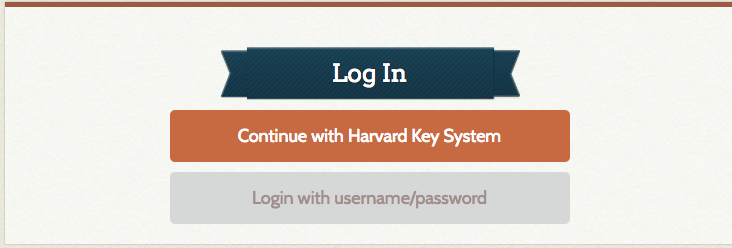
This plugin overrides the default login screen and adds an option to login in with Harvard Key. Users can still login with their existing username/password.
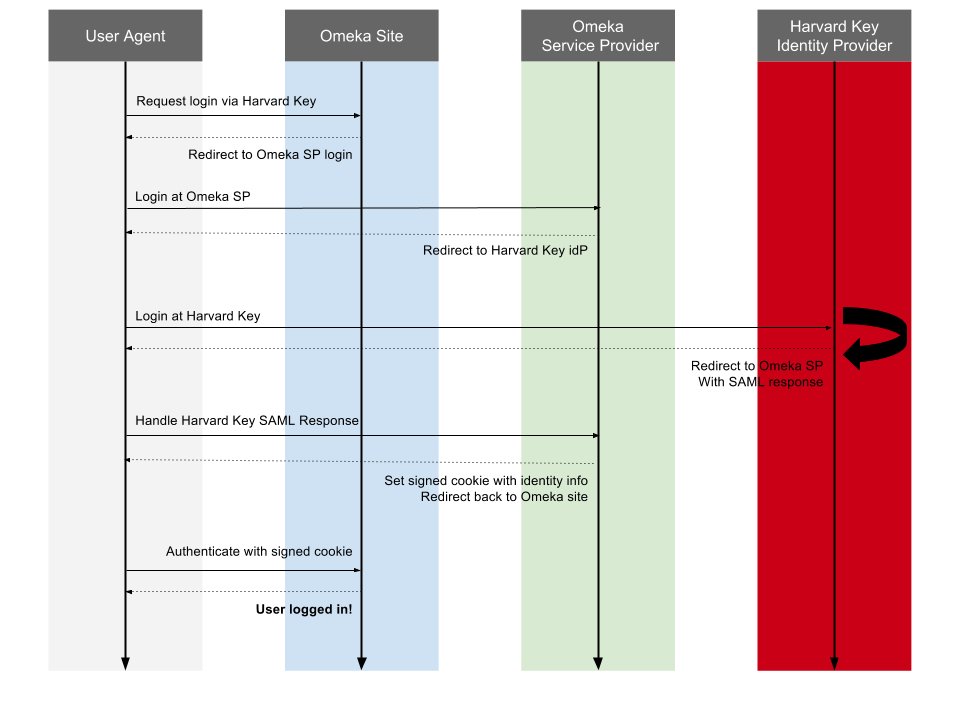
When users choose to login with Harvard Key, the plugin directs users to an intermediate web service that handles the CAS/SAML authentication with Harvard Key. This intermediate service provider (SP) is registered directly with Harvard Key's identity provider (IDP), and is responsible for authenticating the user and returning them back to the Omeka site with identity information such as name, email, and eduPersonPrincipalName (i.e. eppn).
The rationale for creating the intermediate auth service is that it allows us to register once for all Omeka sites, rather than having to register for each Omeka site, which would be cumbersome since new Omeka sites are created frequently. This is based on the assumption that the platform for all Omeka sites is controlled from end to end.
Assumptions:
- All Omeka sites exist on the same sub-domain.
- An auth service provider (SP) exists on the same domain as the omeka sites so that cookies can be shared. The SP handles the CAS/SAML protocol to authenticate with the Harvard Key identity provider.
- The auth service provider (SP) returns a signed token in JSON format via cookie that Omeka sites can consume. The token contains identity information such as id (eduPersonPrincipalName), mail, and displayName.
- The plugin is configured with authorization rules that determine whether users are permitted to login (allow/deny) and if they are allowed to login, what role/permissions they receive.
The plugin settings page no the admin UI provides the following options:
- Set the role that authenticated users are assigned. The default is a guest role that only allows the user to see public content. Any valid role can be selected.
- Set a whitelist of allowed emails that determine which users are permitted to login with Harvard Key. This is based on the user's official email address. The default is to allow any user to login (empty list).
In addition to the settings, the following functionality is available:
- Delete Accounts. This allows an admin to delete ALL user accounts created by logging in with Harvard Key (not those linked to existing accounts). This is mostly intended for use during shopping period as a way to allow anyone to login for a short period, and then clear out those accounts and restrict logins to enrollees using the whitelist feature.
- Deactivate Accounts. This allows an admin to set all user accounts to inactive, which prevents those users from logging in.
Omeka doesn't have a built-in way to force a login for all pages, since part of the site is public by default.
However, using a controller plugin modeled after Omeka_Controller_Plugin_Admin, you can require a site-wide login.
To register the plugin, you must replace the default index.php with the following:
// Bootstrap the application.
require_once 'bootstrap.php';

// Configure and initialize the application.
$application = new Omeka_Application(APPLICATION_ENV);
$bootstrap = $application->getBootstrap();
$bootstrap->setOptions(array(
    'resources' => array(
        'theme' => array(
            'basePath' => THEME_DIR,
            'webBasePath' => WEB_THEME
        )
    )
));
$application->initialize();

// Register custom plugin to protect site.
$front = $bootstrap->getResource('FrontController');
$front->registerPlugin(new HarvardKey_Controller_Plugin_Protect);

// Run the application!
$application->run();