🚀 A comprehensive collection of essential Linux commands and best practices for system administrators, DevOps engineers, and power users. This repository provides useful commands for process management, log analysis, network troubleshooting, system monitoring, and more.
💡 Whether you're a beginner or an advanced user, this guide will help you optimize your workflow and efficiently manage Linux systems.
🔹 Topics Covered: ✔️ Process Management ✔️ Log Management (journalctl, syslog, messages, etc.) ✔️ Networking & Firewall Commands ✔️ System Monitoring (htop, vmstat, iostat, etc.) ✔️ File & Disk Management ✔️ Automation & Scripting
📖 Contributions are welcome! Feel free to fork, improve, and share. 🚀
Hy i'm Linux and this... 🐧 is my penguin. He's my PR guy. He handles all the "cute" and "cuddly" aspects of my image. I handle the "power," "flexibility," and "not crashing every five minutes" parts. We're a team. A brilliant team.
Linux: Not Just a Penguin, It's a Whole Ecosystem!
Hi, I'm Linux, and this... is my penguin, Tux. He's my public face. He's adorable, right? Distracts everyone from how ridiculously powerful I am under the hood. Because beneath the fluff, I'm a finely-tuned machine, a masterpiece of open-source engineering.
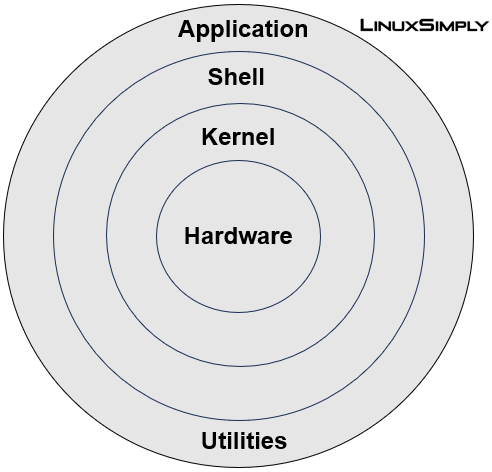
Let's talk architecture, baby! Think of me as a layered cake, but instead of frosting and sponge, it's code and… well, more code.
-
The Kernel (The Heart❤️): This is my core, the brains of the operation. It's responsible for talking to the hardware, managing memory, and scheduling processes. Think of it as the conductor of an orchestra, making sure everything plays nicely together. Linus Torvalds built this, and it's the foundation of everything Linux.
-
The Shell (The Translator): This is how you, the user, communicate with the Kernel. It's a command-line interpreter. You type in commands, and the Shell translates them into instructions the Kernel understands. It's like having a conversation with your computer, but instead of emojis, you use cryptic commands. (Don't worry, there are graphical interfaces too!)
-
Applications (The Fun Stuff): These are the programs you actually use, like web browsers, text editors, and games. They sit on top of the Shell and Kernel and provide the functionality you need. Think of them as the instruments in the orchestra, playing the music the Kernel conducts.

Now, the beauty of Linux is that it's open-source. This means anyone can take my Kernel and build a distribution around it. Think of distributions like different remixes of the same song. They all use the same Kernel, but they have different sets of applications, desktop environments, and configurations. It's like choosing your favorite flavor of ice cream – they're all ice cream, but they have different tastes.

And speaking of desktop environments, that's the graphical interface you actually interact with. It's what makes Linux look and feel like… well, an operating system. You can choose from a variety of desktop environments, each with its own look and feel. It's like choosing the furniture for your operating system house.
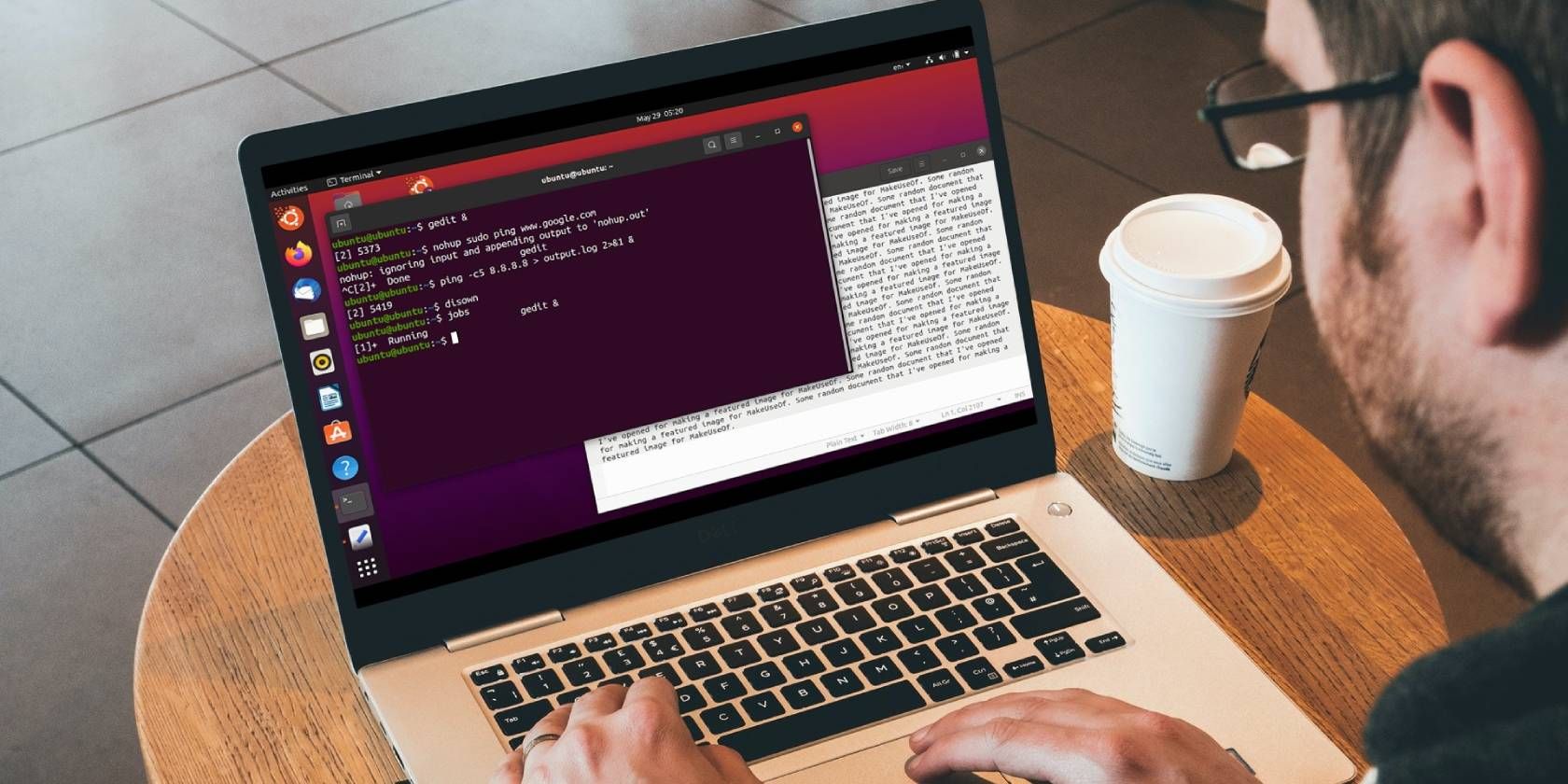
So, why choose Linux? Because it's powerful, flexible, and free! It's like having a superpower for your computer. And if you're ever stuck, the Linux community is incredibly helpful. It's like having a global network of experts ready to assist you.
Linux comes in various distributions (distros), each tailored for specific use cases, from personal computing to enterprise servers and cybersecurity. Below is a categorized breakdown of the most commonly used Linux distributions, along with their strengths, similarities, and differences.
These are designed for everyday users, developers, and system administrators.
| Distribution | Based On | Best For | Package Manager | Default Desktop |
|---|---|---|---|---|
| 🐧 Ubuntu | Debian | Beginners, Workstations, Servers | APT (.deb) |
GNOME |
| 🏗️ Debian | Independent | Stability, Servers, DevOps | APT (.deb) |
GNOME |
| 🔵 Fedora | Red Hat | Developers, Cutting-edge Tech | DNF (.rpm) |
GNOME |
| 💻 Arch Linux | Independent | Advanced Users, Customization | Pacman (.pkg.tar.xz) |
No Default |
| 🎯 Linux Mint | Ubuntu/Debian | Windows-like Experience | APT (.deb) |
Cinnamon |
🔹 🟢 Similarities:
- Ubuntu, Debian, and Mint use
.deb(Debian-based) packages. - Fedora and Debian focus on stability, while Arch offers customization.
- Ubuntu and Mint are user-friendly with a graphical installer.
These are built for business environments, cloud computing, and large-scale infrastructures.
| Distribution | Based On | Best For | Package Manager | Key Feature |
|---|---|---|---|---|
| 🔴 Red Hat Enterprise Linux (RHEL) | Fedora | Corporate Servers | DNF (.rpm) |
Enterprise Support |
| 🟣 CentOS Stream | RHEL | Cloud & Hosting | DNF (.rpm) |
RHEL-Compatible |
| 📦 SUSE Linux Enterprise (SLES) | Independent | Enterprise IT | Zypper (.rpm) |
YaST Management |
| ☁️ Ubuntu Server | Debian | Cloud & DevOps | APT (.deb) |
OpenStack Support |
🔹 🟢 Similarities:
- RHEL, CentOS, and SUSE use
.rpmpackages. - Ubuntu Server and Debian are lightweight and Debian-based.
- All offer long-term support (LTS) for critical workloads.
These are designed for cybersecurity professionals, ethical hackers, and forensics.
| Distribution | Based On | Best For | Pre-installed Tools |
|---|---|---|---|
| 🐉 Kali Linux | Debian | Penetration Testing | Metasploit, Wireshark, Nmap |
| 🦉 Parrot OS | Debian | Security, Privacy | Anonsurf, Forensics Tools |
| 🏴☠️ BlackArch | Arch Linux | Advanced Pentesting | 2,500+ Hacking Tools |
🔹 🟢 Similarities:
- All include penetration testing frameworks and security tools.
- Kali and Parrot are Debian-based, while BlackArch extends Arch Linux.
- Parrot OS focuses more on privacy & anonymity.
Perfect for old computers, embedded systems, or minimal installations.
| Distribution | Based On | Best For | RAM Requirement |
|---|---|---|---|
| 🟢 Alpine Linux | Independent | Containers, Security | 64MB |
| 🏎️ Puppy Linux | Various | Old Hardware | 128MB |
| 🏠 Lubuntu | Ubuntu | Lightweight Desktop | 512MB |
🔹 🟢 Similarities:
- All are resource-efficient and run on low-end systems.
- Alpine is commonly used in Docker containers due to its small size.
- Lubuntu and Puppy provide graphical desktops for older machines.
🔹 For Beginners → 🐧 Ubuntu, 🟢 Linux Mint
🔹 For Developers → 🏗️ Fedora, 🔵 Arch Linux
🔹 For Enterprise → 🔴 RHEL, 🟣 CentOS Stream
🔹 For Hacking → 🐉 Kali Linux, 🦉 Parrot OS
🔹 For Old PCs → 🏎️ Puppy Linux, 🏠 Lubuntu
Here are some helpful references to dive deeper into Linux distributions and system administration:
📚 DistroWatch – Compare Linux distros
📖 The Linux Command Line – Beginner to Advanced Guide
📙 Arch Wiki – The best technical documentation
- Home directory and
~
In most cases, your home directory will look something like this:
[xox@pc-name ~]$The ~ character indicates that you are in the home directory, whilst & tells that you are not the root user. At the prompt, you can type a command, i.e date, which will be interpreted by the shell:
[xox@pc-name ~]$ date
Tue May 11 17:15:18 EDT 2021
[xox@pc-name ~]$
You can pass certain arguments to a shell command, such as echo, which prints outs a passed argument:
[xox@pc-name ~]$ echo Hello Linux!
Hello Linux!
[xox@pc-name ~]$
echo $PATH,which
But how does the shell know how to find the date or echo programs? When you run commands in your shell, you are really writing a small bit of code that your shell interprets. If the shell is asked to execute a command that doesn’t match one of its programming keywords, it consults an environment variable called $PATH that lists which directories the shell should search for programs when it is given a command:
[xox@pc-name ~]$ echo $PATH
/usr/local/sbin:/usr/local/bin:/usr/sbin:/usr/bin:/sbin:/bin
[xox@pc-name ~]$ which echo
/bin/echo
[xox@pc-name ~]$ /bin/echo $PATH
/usr/local/sbin:/usr/local/bin:/usr/sbin:/usr/bin:/sbin:/bin
When we run the echo command, the shell sees that it should execute the program echo, and then searches through the :-separated list of directories in $PATH for a file by that name. When it finds it, it runs it (assuming the file is executable). We can find out which file is executed for a given program name using the which program. We can also bypass $PATH entirely by giving the path to the file we want to execute.
- contents of the shell
For the next command, let's type ls -lh to list the contents of a folder. For instance, you can observe here the contents of my home directory:
-rw-r--r-- 1 xox usrgrp 3.5K May 11 10:34 environment.yml
drwxr-xr-x 3 xox usrgrp    3 Apr 24 16:46 github/
lrwxrwxrwx 1 xox usrgrp   24 Jan 26 09:03 mydata -> /apps/data/
drwxr-xr-x 3 xox usrgrp    3 Jan 28 10:06 scikit_learn_data/
drwxr-xr-x 2 xox usrgrp    4 Nov 30 09:21 scripts/
drwxr-xr-x 3 xox usrgrp    3 Nov  6  2020 workshops/
To understand what does it mean, check the following example:
-rwxrw-r--    10    root   root 2048    Jan 13 07:11 afile.exe
?UUUGGGOOOS   00  UUUUUU GGGGGG ####    ^-- date stamp and file name are obvious ;-)
^ ^  ^  ^ ^    ^      ^      ^    ^
| |  |  | |    |      |      |    \--- File Size
| |  |  | |    |      |      \-------- Group Name (for example, Users, Administrators, etc)
| |  |  | |    |      \--------------- Owner Account
| |  |  | |    \---------------------- Link count (what constitutes a "link" here varies)
| |  |  | \--------------------------- Alternative Access (blank means none defined, anything else varies)
| \--\--\----------------------------- Read, Write and Special access modes for [U]ser, [G]roup, and [O]thers (everyone else)
\------------------------------------- File type flag
In the order of ouput:
- File permissions (
-rwxrw-r--), - Number of (hard) links (
1), - Owner name (
root), - Owner group (
root), - File size in bytes (
2048), - Time of last modification (
Jan 13 07:11) - File/directory name (
afile.exe)
File permissions is displayed as following;
- First character is most often
-,lord. Adindicates a directory, a-represents a regular file,lis a symlink (or soft link) and other letters are used for other types of special files. - Three sets of characters, three times, indicating permissions for owner, group and other:
r= readablew= writablex= executable (for files) or accessible (for directories) - This may be followed by some other character of there are extended permissions, like e.g. Linux ACL that are marked with a
+.
In our example -rwxrw-r--, this means the line displayed is:
- A regular file (displayed as
-) - Readable, writable and executable by owner (
rwx) - Readable, writable, but not executable by group (
rw-) - Readable but not writable or executable by other (
r--)
The number of hard links means the number of names the inode has, i.e. links created with ln without the -s option.
For more information, check this link.
pwd
Print name of current/working directory.
[username@pc-name ~]$ pwd
/home/username
cd
Change a directory.
[username@pc-name ~]$ cd /home
[username@pc-name ~]$ pwd
/home
[username@pc-name ~]$ cd ..
[username@pc-name ~]$ pwd
/
[username@pc-name ~]$ cd ./home
[username@pc-name ~]$ pwd
/home
[username@pc-name ~]$ cd
[username@pc-name ~]$ pwd
/home/username
[username@pc-name ~]$ cd ../../
[username@pc-name ~]$ pwd
/
[username@pc-name ~]$ cd ~/
[username@pc-name ~]$ pwd
/home/username
A path on the shell is a delimited list of directories; separated by / on Linux and macOS and \ on Windows. On Linux and macOS, the path / is the “root” of the file system, under which all directories and files lie, whereas on Windows there is one root for each disk partition (e.g., C:\). We will generally assume that you are using a Linux filesystem in this class. A path that starts with / is called an absolute path. Any other path is a relative path. Relative paths are relative to the current working directory, which we can see with the pwd command and change with the cd command. In a path, . refers to the current directory, and .. to its parent directory
For more information on what can you find the root / directory, check this YouTube video.
ls
List the contents of the folder. Some useful flags:
  -a, --all                  do not ignore entries starting with .
  -d, --directory            list directories themselves, not their contents
  -h, --human-readable       with -l, print sizes in human readable format
                               (e.g., 1K 234M 2G)
For more options, type ls --help.
chmod
You can change permissions, by typing the following commands:
chmod +rwx filename                     to add permissions.
chmod -rwx directoryname                to remove permissions.
chmod +x filename                       to allow executable permissions.
chmod -wx filename                      to take out write and executable permissions
To be more specific, use u for users, u for group, o for others, and ugo or a (for all):
chmod ugo+rwx foldername                to give read, write, and execute to everyone.
chmod a=r foldername                    to give only read permission for everyone.
To change permissions in numeric code in Linux, you use numbers instead of r, w, or x.
0 = No Permission
1 = Execute
2 = Write
4 = Read
Basically, you add up the numbers depending on the level of permission you want to give. Permission numbers are:
0 = ---
1 = --x
2 = -w-
3 = -wx
4 = r-
5 = r-x
6 = rw-
7 = rwx
For example:
chmod 777 foldername                    will give read, write, and execute permissions for everyone.
chmod 700 foldername                    will give read, write, and execute permissions for the user only.
chmod 327 foldername                    will give write and execute (3) permission for the user, w (2) for the group, and read, write, and execute for the users.
Other tools, such as chgrps and chown allow to change groups of files and ownership, respectively.
For more about permissions, follow the link.
whoami
Print a current effective userid:
[username@pc-name ~]$ whoami
your-username
touch
Create a single empty file.
cp
Copy a file from one location to another. To copy folders, you need to add -r flag to perform a recursive copy.
mv
Move a folder to a different location or rename a file in place.
mkdir
Create a folder.
rm
Remove a file. To remove a folder, you need to add a recursive -r flag. Sometimes, you might need to force the removal, so add -f flag. But be careful, every operation with rm is irreversable!
- Tab autocompletion and right/middle mouse button copy.
Use tab button to autocomplete paths, command names and search for file names. In addition, use right/middle mouse (depending on the system) button for quick copy paste actions.
- See the command history.
Press up and down buttons to cycle through your command history. If you have trully spammed a lot of commands, perhaps an easier way would be to read ~/.bash_history file. Or press ctrl + r for recursive command history search.
- Display the contents of a file.
| Command | Description | Options/Examples |
|---|---|---|
ps (Process Status) |
Displays running processes. | ps aux (details), ps -ef (UID/PPID), ps -u <user> (user), ps -p <PID> (PID), ps --forest (hierarchical tree) |
top (Table Of Processes) |
Displays real-time process monitoring. | top (real-time), top -u <user> (user), top -p <PID> (PID), Shift + M (sort by memory), Shift + P (sort by CPU), k (kill), 1 (CPU per core) |
htop |
Interactive alternative to top. |
htop (graphical interface), htop -u <user> (user), navigation with arrows, color coding |
pgrep (Process Grep) |
Searches for a process by name. | pgrep nginx (PID of "nginx"), pgrep -u root (root processes), pgrep -l ssh (PID and name) |
kill |
Terminates a process by PID. | kill <PID> (SIGTERM), kill -9 <PID> (SIGKILL), kill -HUP <PID> (reload) |
pkill |
Kills by process name. | pkill apache (process "apache"), pkill -9 firefox (force kill), pkill -u <user> (user) |
killall |
Kills all processes of a name. | killall nginx (all "nginx"), killall -9 firefox (force kill) |
xkill |
Kills by clicking on the window (X11). | xkill (graphical environment) |
nice |
Starts with a specific priority. | nice -n 10 ./script.sh (low priority), nice -n -5 ./script.sh (high priority) |
renice |
Modifies the priority of a process. | renice -n 5 -p <PID> (modify), renice -n -10 -u root (modify for root) |
& |
Runs a process in the background. | ./long_script.sh & |
jobs |
Lists background processes. | jobs |
fg |
Brings a process to the foreground. | fg %1 (job number 1) |
bg |
Resumes a process in the background. | bg %1 (job number 1) |
nohup |
Runs in the background (disconnection). | nohup ./long_script.sh & (output to nohup.out) |
disown |
Detaches a process from the terminal. | disown -h %1 (job 1) |
strace |
Traces system calls. | strace -p <PID> (real-time), strace -c ls (analysis) |
lsof |
Lists open files. | lsof -p <PID> (open files), lsof -i :80 (port 80) |
watch |
Executes a command at intervals. | watch -n 2 ps aux (every 2 seconds) |
timeout |
Limits the execution time. | timeout 10s ./script.sh (10 seconds) |
| `ps aux | grep Z` | Identifies zombie processes. |
kill -HUP <PPID> |
Cleans zombie processes. | (if parent PID = 1) |
- Zombie: A process that has finished execution but remains in the process table.
- Orphan: A process whose parent has terminated.
journalctl is the primary tool for querying and managing systemd journal logs.
| Command | Function |
|---|---|
journalctl |
Displays all system logs. |
journalctl -n 50 |
Displays the last 50 lines of logs. |
journalctl -f |
Displays logs in real time (equivalent to tail -f). |
journalctl -b |
Displays logs from the last boot. |
journalctl -b -1 |
Displays logs from the previous boot. |
journalctl -u nginx |
Displays logs from the Nginx service. |
journalctl -p 3 |
Displays only error logs (p 3 = ERR). |
journalctl --since "1 hour ago" |
Displays logs from the last 60 minutes. |
journalctl --since "2024-02-01 10:00:00" --until "2024-02-01 12:00:00" |
Displays logs for a specific time period. |
journalctl --disk-usage |
Displays disk space used by logs. |
journalctl --vacuum-size=500M |
Removes logs to keep them under 500 MB. |
journalctl --vacuum-time=2d |
Removes logs older than 2 days. |
journalctl --flush |
Forces logs in memory to be written to disk. |
This file contains logs from various services and applications, excluding authentication logs.
| Command | Function |
|---|---|
cat /var/log/syslog |
Displays the entire file content. |
tail -n 50 /var/log/syslog |
Displays the last 50 lines of logs. |
tail -f /var/log/syslog |
Displays logs in real time. |
grep "error" /var/log/syslog |
Searches for the word "error" in the logs. |
Similar to /var/log/syslog, this file is primarily used on RHEL/CentOS for storing general system logs.
| Command | Function |
|---|---|
cat /var/log/messages |
Displays the entire file content. |
tail -f /var/log/messages |
Displays logs in real time. |
| File | Content |
|---|---|
/var/log/auth.log |
Authentication and login logs (SSH, sudo...). |
/var/log/dmesg |
Kernel logs (boot, hardware errors, devices). |
/var/log/kern.log |
Detailed kernel logs. |
/var/log/secure |
Security logs (mainly on CentOS/RHEL). |
/var/log/nginx/access.log |
Access logs for the Nginx server. |
/var/log/nginx/error.log |
Error logs for Nginx. |
/var/log/apache2/access.log |
Access logs for the Apache server. |
/var/log/apache2/error.log |
Error logs for Apache. |
logrotate is used for archiving and cleaning up logs automatically.
| Command | Function |
|---|---|
sudo logrotate -f /etc/logrotate.conf |
Forces manual log rotation. |
cat /etc/logrotate.conf |
Checks the configuration. |
-
Log Centralization: Use tools like
rsyslogorElasticsearchto collect and manage logs from multiple servers in one place. This makes it easier to search and analyze logs. -
Log Analysis: Use tools like
grep,awk,sed, or dedicated log analysis tools to search for errors, warnings, or unusual behavior in your logs. -
Log Monitoring: Set up alerts to be notified of important events in your logs, such as critical errors or intrusion attempts.
-
Log Archiving: Regularly archive your logs to keep a historical record of events and meet compliance requirements.
-
Log Security: Protect your log files with appropriate permissions to prevent unauthorized access.
-
Log Rotation: Configure
logrotatefor regular log rotation to prevent logs from taking up too much disk space. -
Using
journalctl:journalctloffers many options for filtering and displaying systemd logs. Learn to master this tool to make your work easier. -
Log Structure: Adopt a clear and consistent log structure to facilitate analysis and searching for information.
| Command | Description | Key Options |
|---|---|---|
ip a |
Displays network interfaces and IP addresses. | show, add, del |
ip link |
Manages network interfaces. | set <interface> up/down, show |
ip route |
Displays and modifies routes. | show, add, del |
ifconfig |
Old command to display network configuration. | up, down, netmask, broadcast |
| Command | Description | Key Options |
|---|---|---|
ss -tulnp |
Lists open ports and active connections. | -t (TCP), -u (UDP), -l (listening), -n (numeric), -p (processes) |
netstat -tulnp |
Alternative to ss, displays network connections. |
-a (all), -t (TCP), -u (UDP), -p (PID) |
lsof -i |
Shows processes using network connections. | -i :80 (specific port), -iTCP |
| Command | Description | Key Options |
|---|---|---|
tcpdump |
Captures and displays network traffic. | -i eth0, -n (no DNS resolution), port 80 |
wireshark |
GUI for traffic analysis. | |
ngrep |
Searches for patterns in network traffic. | -d eth0 'GET' (capture HTTP requests) |
| Command | Description | Key Options |
|---|---|---|
iptables -L |
Lists firewall rules. | -v (details), -n (numeric) |
iptables -A INPUT -p tcp --dport 22 -j ACCEPT |
Allows SSH (port 22). | -A (add), -D (delete), -F (flush) |
iptables -A INPUT -p tcp --dport 80 -j DROP |
Blocks HTTP (port 80). | -p tcp (protocol), -j DROP (action) |
iptables-save > rules.v4 |
Saves current rules. | |
iptables-restore < rules.v4 |
Restores saved rules. | |
nft list ruleset |
Lists nftables rules. | |
nft add rule ip filter input tcp dport 22 accept |
Adds a rule to allow SSH. |
| Command | Description | Key Options |
|---|---|---|
ping google.com |
Tests connectivity with a host. | -c 4 (number of packets) |
traceroute google.com |
Displays the path of packets. | -n (avoid DNS lookup) |
mtr google.com |
Interactive alternative to traceroute. | -rw (command-line report) |
dig google.com |
Advanced DNS lookup. | @8.8.8.8 google.com (specific DNS server) |
host google.com |
Quick DNS resolution. |
| Command | Description | Key Options |
|---|---|---|
dhclient -r && dhclient eth0 |
Renews IP address via DHCP. | |
nmcli |
Manages connections with NetworkManager. | connection show, device status |
systemctl restart networking |
Restarts network services. | |
ethtool eth0 |
Displays and modifies interface settings. | -s eth0 speed 100 duplex full |
iwconfig wlan0 |
Displays and configures a Wi-Fi interface. | essid (SSID), mode (Managed/Ad-hoc) |
| Command | Description | Key Options / Tips |
|---|---|---|
df -h |
Displays used and available disk space. | -h (human-readable size), -T (file system type) |
lsblk |
Lists storage devices and their hierarchy. | -f (file system), -o NAME,SIZE,MOUNTPOINT |
fdisk -l |
Lists partitions and disk information. | -l (list all partitions) |
blkid |
Displays UUIDs and file system types. | Useful for identifying disks |
mount |
Displays mounted partitions or mounts a disk. | mount /dev/sdb1 /mnt |
umount |
Unmounts a file system. | umount /mnt |
findmnt |
Lists mounted file systems in a tree structure. | -t ext4 (filter by type) |
Tip ✨: Use df -ih to check disk space in inodes.
| Command | Description | Key Options |
|---|---|---|
fdisk /dev/sdX |
Interactive partitioning tool. | n (new partition), d (delete) |
parted /dev/sdX |
Advanced tool for GPT and MBR partitions. | mklabel gpt, mkpart primary ext4 1MiB 100% |
mkfs.ext4 /dev/sdX1 |
Formats a partition as ext4. | -L mydisk (label) |
mkfs.xfs /dev/sdX1 |
Formats as XFS. | -f (force format) |
tune2fs -c 10 /dev/sdX1 |
Auto-check after 10 mounts. | -i 30d (check after 30 days) |
Tip ✨: Use parted for GPT disks (> 2TB).
| Command | Description | Key Options |
|---|---|---|
pvcreate /dev/sdX |
Initializes a disk for LVM. | |
vgcreate my_vg /dev/sdX |
Creates a volume group. | |
vgdisplay |
Displays VG information. | |
lvcreate -L 10G -n my_lv my_vg |
Creates a logical volume. | -l 100%FREE (use all free space) |
mkfs.ext4 /dev/my_vg/my_lv |
Formats the logical volume. | |
mount /dev/my_vg/my_lv /mnt |
Mounts the LVM volume. | |
lvextend -L +5G /dev/my_vg/my_lv |
Expands the LV size. | |
resize2fs /dev/my_vg/my_lv |
Resizes the file system after expansion. | |
lvreduce -L 5G /dev/my_vg/my_lv |
Reduces an LV ( |
e2fsck -f before reduction |
vgextend my_vg /dev/sdY |
Adds a disk to the VG. | |
vgreduce |
Removes a disk from the VG. |
Tip ✨: LVM is ideal for resizing without rebooting.
| Command | Description | Key Options |
|---|---|---|
fsck /dev/sdX1 |
Checks and repairs a file system. | -y (auto-confirm fixes) |
e2fsck -f /dev/sdX1 |
Checks an ext4 file system. | |
xfs_repair /dev/sdX1 |
Repairs an XFS file system. | |
badblocks -sv /dev/sdX |
Scans for bad sectors. |
Tip ✨: Use fsck to repair a read-only disk.
| Command | Description | Key Options |
|---|---|---|
rsync -avh /source /destination |
Copies files while preserving permissions. | --progress (show progress) |
dd if=/dev/sdX of=/dev/sdY bs=4M status=progress |
Clones a raw disk ( |
|
tar -czf backup.tar.gz /home/user |
Archives a folder into .tar.gz. | -xzf (extract) |
mount -o loop image.iso /mnt |
Mounts an ISO image. |
Tip ✨: Use rsync for live disk copying.
| Command | Description | Key Options |
|---|---|---|
iostat -dx 1 |
Displays real-time disk usage. | -x (detailed stats) |
vmstat 1 |
Monitors memory and disk usage. | |
iotop |
Shows processes consuming the most I/O. | -o (only active ones) |
smartctl -a /dev/sdX |
Checks SMART status of a disk. | -t short (runs a test) |
Tip ✨: Use iotop and smartctl to detect failures.
| Command | Description | Key Options |
|---|---|---|
cryptsetup luksFormat /dev/sdX |
Encrypts a disk with LUKS. | |
cryptsetup open /dev/sdX my_secure_disk |
Mounts an encrypted disk. | close to unmount |
mkfs.ext4 /dev/mapper/my_secure_disk |
Formats the encrypted partition. |
Tip ✨: Use LUKS to encrypt an entire disk.
| Command | Description | Key Options / Tips |
|---|---|---|
whoami |
Displays the current user. | |
id |
Shows the UID, GID, and groups of a user. | id username (view another user) |
who |
Lists logged-in users. | |
w |
Displays more details about active sessions. | |
last |
Shows login history. | last -a (adds IP of connections) |
Tip ✨: Use w instead of who to see CPU load and active processes.
| Command | Description | Key Options |
|---|---|---|
useradd -m username |
Creates a user with a home directory. | -m (creates /home/username) |
passwd username |
Sets or changes the password. | |
usermod -l newname oldname |
Renames a user. | |
usermod -aG groupname username |
Adds a user to a group. | -aG (add without removing other groups) |
userdel -r username |
Deletes a user and their home directory. | -r (removes files) |
Tip ✨: Never manually edit /etc/passwd! Use usermod.
| Command | Description | Key Options |
|---|---|---|
passwd username |
Changes a user's password. | |
passwd -l username |
Locks an account. | -u (unlocks) |
passwd -e username |
Forces password change on next login. | |
chage -l username |
Displays password expiration info. | |
chage -M 90 username |
Sets a password validity of 90 days. | -W 7 (warns 7 days before expiration) |
Tip ✨: Enable automatic password expiration with chage -M 90 -W 7.
| Command | Description | Key Options |
|---|---|---|
groups username |
Lists a user's groups. | |
groupadd groupname |
Creates a group. | |
groupdel groupname |
Deletes a group. | |
usermod -aG sudo username |
Adds a user to the sudo group. | -aG (add without removing other groups) |
gpasswd -d username groupname |
Removes a user from a group. |
Tip ✨: The sudo group allows executing root commands. Check with groups username.
| Command | Description | Key Options |
|---|---|---|
chmod 755 file |
Changes file permissions. | 777 (everyone has full access) |
chown user:group file |
Changes file owner. | -R (recursively) |
sudo visudo |
Safely edits the sudoers file. | Add username ALL=(ALL) NOPASSWD:ALL |
sudo -l |
Lists allowed sudo commands. |
Tip ✨: Never modify /etc/sudoers directly! Use visudo.
| Command | Description | Key Options |
|---|---|---|
usermod -L username |
Locks a user account. | -U (unlocks) |
faillog -u username |
Displays failed login attempts. | faillog -r -u username (resets) |
kill -9 -1 |
Logs out all user sessions ( |
|
pkill -u username |
Logs out a specific user. |
Tip ✨: Use faillog to detect failed login attempts.
The System Activity Report (sar) collects and displays data on resource usage (CPU, memory, disk, network).
| Command | Description |
|---|---|
sar -u 5 10 |
Displays CPU usage every 5 sec, 10 times. |
sar -q 1 5 |
Displays system load every 1 sec, 5 times. |
sar -r 2 5 |
Displays memory usage every 2 sec, 5 times. |
sar -n DEV 1 5 |
Monitors network activity per interface. |
sar -d 2 3 |
Displays disk activity every 2 sec, 3 times. |
sar -W 1 5 |
Monitors swap usage. |
sar -f /var/log/sa/sa10 |
Displays stats collected on the 10th of the month. |
sar -o stats.sar 10 5 |
Saves data for later analysis. |
sar -f stats.sar |
Reads the saved data. |
Tip ✨: Save and analyze data for later review.
The iostat tool helps analyze disk activity and CPU usage to detect storage-related issues.
| Command | Description |
|---|---|
iostat |
Displays a summary of CPU and disk stats. |
iostat -c 2 5 |
Monitors CPU usage every 2 sec, 5 times. |
iostat -d 1 10 |
Monitors disk activity every 1 sec, 10 times. |
iostat -x |
Displays detailed disk stats. |
iostat -x /dev/sda 1 10 |
Analyzes only /dev/sda. |
| `iostat -x | sort -k 2 -nr` |
Tip: Find the most used disk.
The vmstat tool displays statistics on RAM, swap, processes, and CPU usage.
| Command | Description |
|---|---|
vmstat 1 10 |
Displays stats every 1 sec, 10 times. |
vmstat -s |
Shows a detailed memory summary. |
vmstat -d |
Displays disk usage stats. |
vmstat -p /dev/sda |
Monitors a specific partition. |
vmstat -a |
Displays allocated memory pages. |
| `vmstat 1 5 | awk '{print $7}'` |
Tip ✨: Detect swap issues.
The top tool allows real-time process monitoring.
| Command | Description |
|---|---|
top |
Displays active processes in real time. |
top -o %MEM |
Sorts by memory consumption. |
top -o %CPU |
Sorts by CPU usage. |
htop |
A more user-friendly alternative. |
| Command | Description |
|---|---|
free -m |
Displays memory in MB. |
free -g |
Displays memory in GB. |
free -h |
Displays memory in a human-readable format. |
watch -n 1 free -m |
Updates memory stats every 1 sec. |
Tip ✨: Continuous display.
| Command | Description |
|---|---|
uptime |
Displays system time, uptime, and load average. |
cat /proc/loadavg |
Displays average load. |
Tip ✨: Understanding load average (1.23 0.98 0.75 - load over 1 min, 5 min, 15 min).
The dstat tool combines vmstat, iostat, netstat, and mpstat for real-time monitoring.
| Command | Description |
|---|---|
dstat |
Displays a summary of resource usage. |
dstat -c --top-cpu |
Shows top CPU-consuming processes. |
dstat -d --top-io |
Displays top disk I/O-consuming processes. |
sudo apt install dstat |
Installs dstat (Debian/Ubuntu). |
sudo yum install dstat |
Installs dstat (RedHat/CentOS). |