A reproducible reference implementation to bridge Home Assistant telemetry and control into Avnet IOTCONNECT.
This project shows how to:
- Publish Home Assistant “things” (entities) into MQTT in a clean, analytics-friendly way
- Bridge MQTT telemetry into IOTCONNECT using the IOTCONNECT Python Lite SDK
- Receive IOTCONNECT cloud-to-device commands and control Home Assistant via the REST API (example: switch/light on/off)
This repo intentionally contains no personal names and no credentials. All secrets are placeholders.
ha_iotc_bridge.py- MQTT -> IOTCONNECT telemetry bridge + C2D command handlerrequirements.txt- Python dependencies for the bridgeexamples/- Home Assistant YAML snippets you can paste/importsystemd/- Optional systemd service unit + instructions (for Linux hosts)
Home Assistant -> (Automations + MQTT) -> Mosquitto -> ha_iotc_bridge.py -> IOTCONNECT
                                            ^
                                            |
                                     IOTCONNECT Commands
                                            |
                                       Home Assistant API
Helpful screenshots (public links):
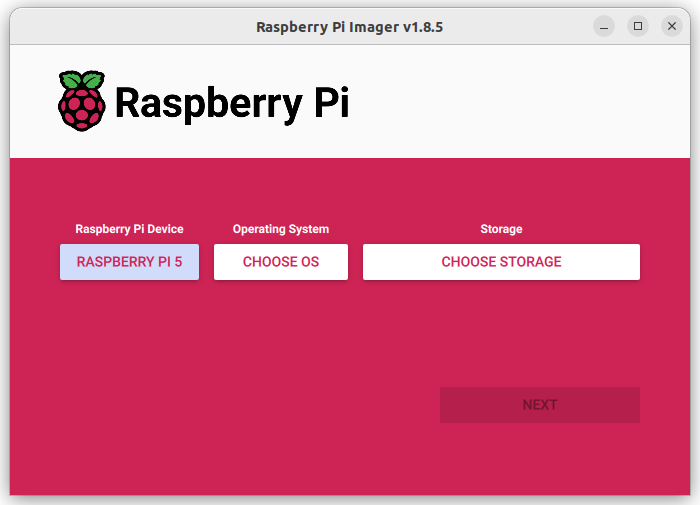
Raspberry Pi Imager start screen

Home Assistant OS selection (Raspberry Pi)
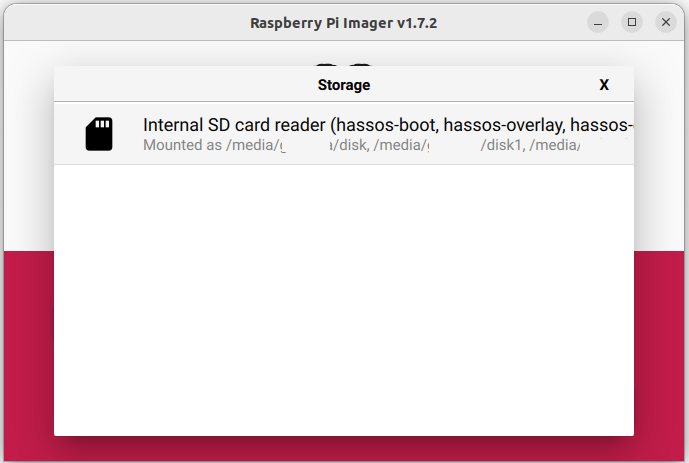
Select SD card / storage
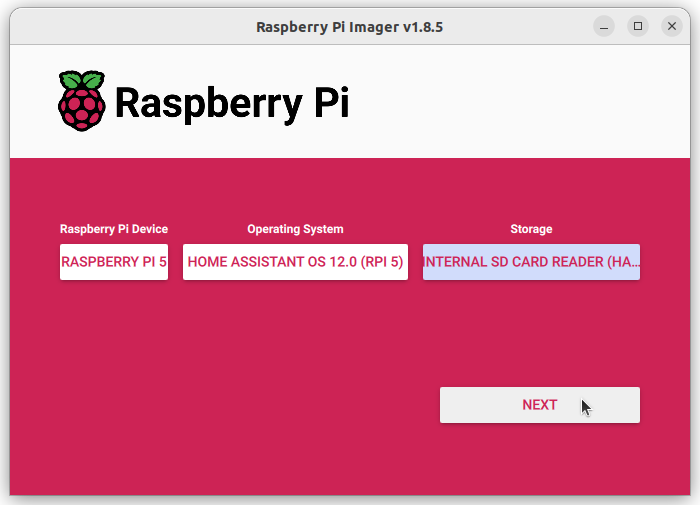
Choose Next / continue setup
After boot, open:
http://homeassistant.local:8123
Complete onboarding.
Install via:
Settings -> Add-ons -> Add-on Store -> search Advanced SSH & Web Terminal.
Example configuration screen:
Advanced SSH & Web Terminal add-on configuration

Notes:
- Do not include leading/trailing spaces in the username (it can break user creation).
- Prefer SSH keys if you plan to expose access beyond your LAN.
Install Mosquitto broker from the add-on store.
Example configuration screen:
Mosquitto broker add-on configuration

Minimal config:
logins:
  - username: mqtt
    password: mqtt
require_certificate: false
customize:
active: falseGo to Settings -> Devices & Services -> MQTT.
Typical settings:
- Discovery enabled
- Birth topic:
homeassistant/statuspayloadonline - Will topic:
homeassistant/statuspayloadoffline
In newer Home Assistant versions, the MQTT “Listen to a topic” tool is not under Developer Tools; it lives under the MQTT integration/config pages.
IOTCONNECT works best with typed numeric telemetry. For switches/lights, publish 0/1.
- Entity ID:
switch.bar_lamp
Automation action payload:
{"value": {{ 1 if is_state('switch.bar_lamp', 'on') else 0 }},
 "source": "switch.bar_lamp"}
Topic (example): ha/lights/bar_lamp
- Entity ID:
light.kitchen_lights
Automation action payload:
{"value": {{ 1 if is_state('light.kitchen_lights', 'on') else 0 }},
 "source": "light.kitchen_lights"}
Topic (example): ha/lights/kitchen_lights
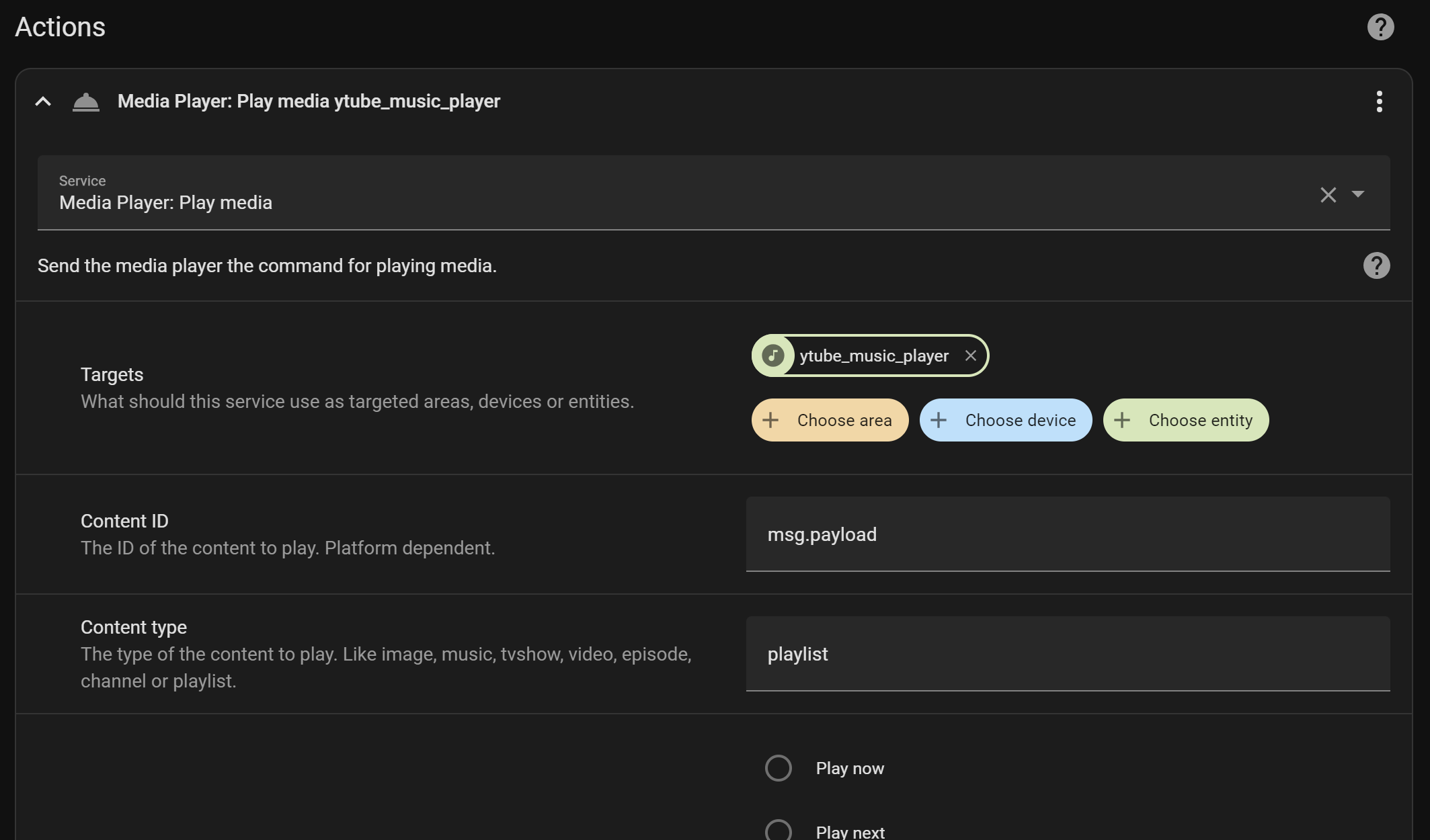
Automation UI screenshots (generic references):
Automation UI example (screenshot 1)

Automation UI example (screenshot 2)
See the ready-to-copy YAML in:
examples/automation_switch_bar_lamp.yamlexamples/automation_light_kitchen_lights.yamlexamples/automation_outdoor_temp.yaml
If you want “lots of entity state” mirrored to MQTT automatically, Home Assistant can publish entity state
via mqtt_statestream.
Example snippet is included at examples/sample_configuration.yaml.
Note: mqtt_statestream publishes many strings/timestamps/metadata topics. Those are great for debugging, but don’t always map cleanly to typed IOTCONNECT attributes. Option A (above) is recommended for analytics.
This token is required for IOTCONNECT -> Home Assistant control (REST API calls).
Profile page screenshot (public link):
Profile page (Long-Lived Access Tokens section)

Steps:
- Click your user (lower-left) -> Profile
- Scroll to Long-Lived Access Tokens
- Create a token and copy it (HA only shows it once)
Set the token in ha_iotc_bridge.py:
HA_TOKEN = "REPLACE_WITH_LONG_LIVED_ACCESS_TOKEN"On the machine where you run the bridge:
python3 -m pip install -r requirements.txtThis bridge needs these local IOTCONNECT files next to ha_iotc_bridge.py:
iotcDeviceConfig.jsondevice-cert.pemdevice-pkey.pem
python3 ha_iotc_bridge.pyYou should see MQTT messages and a “sent telemetry” debug print.
If you only use a single value field in IOTCONNECT, multiple sources will compete.
This bridge also emits dedicated numeric fields:
bar_lamp(0/1)kitchen_lights(0/1)
based on:
source == switch.bar_lampor topicha/lights/bar_lampsource == light.kitchen_lightsor topicha/lights/kitchen_lights
In IOTCONNECT device template telemetry, add (recommended):
bar_lamp(Number)kitchen_lights(Number)
Optionally also add for debugging:
value(Number)source(String)ha_topic(String)payload_raw(String)
This bridge supports the following command names (either works):
set-ha-lightset-ha-entity
Arguments:
entity_id(example:switch.bar_lamporlight.kitchen_lights)state(on/off/1/0/true/false)brightness(optional 0-255 for lights)
Examples:
- Turn plug OFF:
["switch.bar_lamp", "off"]
- Turn dimmer ON at half brightness:
["light.kitchen_lights", "on", "128"]
If you see:
HA HTTP 401: 401: Unauthorized
it means the Home Assistant REST call is not authenticated.
Fast validation from the bridge host:
TOKEN='PASTE_YOUR_LONG_LIVED_ACCESS_TOKEN_HERE'
curl -s -o /dev/null -w "%{http_code}
"   -H "Authorization: Bearer $TOKEN"   http://homeassistant.local:8123/api/
Expected:
200= token is valid401= token is wrong/revoked/malformed (create a new Long-Lived Access Token)
Also verify you are controlling the correct domain:
- HS103 plug is
switch.bar_lamp(notlight.bar_lamp)
If running as a service, restart it after updating the token:
sudo systemctl restart ha-iotc-bridge.serviceSee:
systemd/README.mdsystemd/ha-iotc-bridge.service