TortoiseGit
Tip
TL;DR — If you have TortoiseGit or TortoiseSVN installed, list your working copy folders under Include paths in its icon overlay settings. The drive type boxes will not do it for you: they decide where badges are shown, not what the status cache scans, and it scans your mapped drive by default.
Explorer runs small add-ons from other programs on whatever folder you open. The badges on folder icons — the green tick, the red cross — come from those add-ons. Tortoise goes a step further: the status it draws is collected by TGitCache.exe (TSVNCache.exe for Subversion), a separate process that watches drives for changes on its own.
On a local disk that is free. On a mapped drive it is not: the cache asks about folders you are not even looking at, each question that is not already answered goes to the server, and those requests queue up in front of the listing you are actually waiting for. Measured on one drive, five minutes of the same browsing produced 246 checks for .git and HEAD before the paths were restricted, and 31 after.
Right-click any folder → TortoiseGit (or TortoiseSVN) → Settings → Icon Overlays.
Put the folders that hold your working copies into Include paths, one per line. That is the whitelist: everything outside it is left alone, mapped drives included.
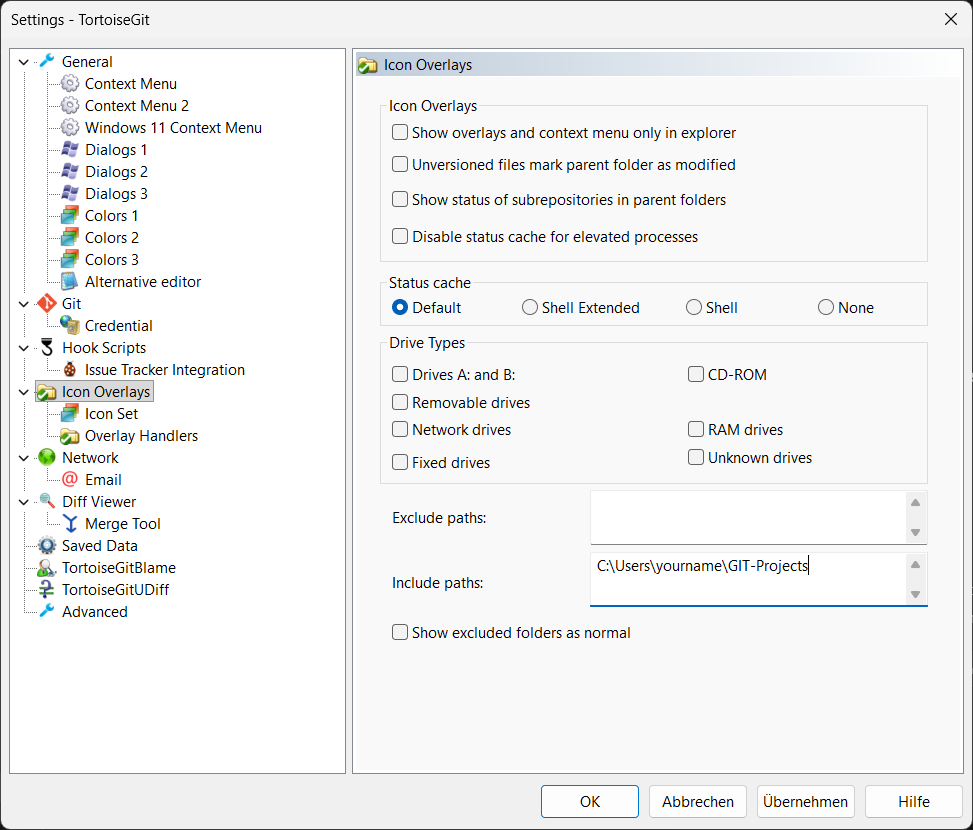
Exclude paths works the other way round and has to be extended every time a new drive or share appears. The include list covers all of them from the start.
Important
The Drive Types boxes are not the setting for this, and that is the part which catches people out. They decide where overlays are shown. Tortoise's own settings documentation says only hard drives are selected by default, and that network drives can be very slow, so by default icons are not shown for working trees located on network shares — while the status cache watches all drives regardless. Leaving the default in place therefore hides the badges on your drive and lets the scanning continue. The path lists are what the cache uses to restrict what it scans.
The dialog writes to HKCU\Software\TortoiseGit and HKCU\Software\TortoiseSVN, as OverlayIncludeList.
The Diagnostics report has a Shell extensions section: it lists what is registered on the machine and prints the include list, so you can see what the cache is allowed to touch.
Other programs — cloud clients, backup tools, antivirus — register the same kind of add-on. They are usually cheap because they only answer about the folder on screen. Tortoise is called out here because its cache goes looking on its own.
Explorer does something of the same shape without any add-on at all: rest the pointer on a folder and it lists everything underneath it to work out a size. That one is Explorer settings.
