A Python script that can be run from the command prompt or can be converted into a Windows desktop application.
We use ExamSoft at our school but test scores are reported in Blackboard Ultra.
We've been exporting scores from ExamSoft in CSV format, downloading gradebook CSV files from Blackboard Ultra, then copying scores from one-to-the-other.
This utility converts ExamSoft assessment score exports (CSV) into a Blackboard Ultra import–ready CSV file, with built-in validation, previewing, and audit reporting.
Designed to reduce manual spreadsheet work and minimize grade upload errors.
- ✅ Guided, step-by-step workflow
- 📂 Reads CSV exports from ExamSoft
- 🔍 Automatically detects score columns
- 👀 Live preview of mapped usernames and scores
- 📊 Instant roster-matching audit (% matched)
⚠️ Warnings for missing users and zero scores- 📝 Generates an audit report for discrepancies
- 💾 Outputs a Blackboard-importable CSV
- 🖥️ Native Windows GUI (no Python required for users)

- Windows 10 or later
- No Python installation required (for end users)
- CSV exports from:
- ExamSoft (Exam Taker Results)
- Uses column headers from Blackboard Ultra gradebook CSV
-
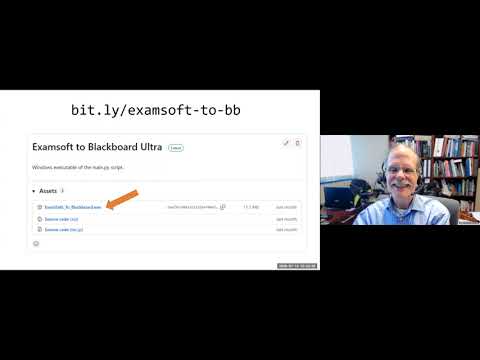
Download the executable:
ExamSoftToBlackboard.exe -
Double-click to launch
(Windows SmartScreen may warn on first run — choose “More info → Run anyway”)
Run main.py
python main.py
pip install pyinstaller
pyinstaller --onefile --windowed --name ExamSoft_To_Blackboard main.py
The executable will be created in:
dist/
Open the assessment → Reporting / Scoring → Exam Taker Results
Select Exam Taker Name, Email, Desired Score → View Report → Show 250 → Export CSV
Sample File in dist folder: ET_Results_Examsoft_Sample_Export_Scores.csv
Gradebook → Download Grades → Full Gradebook → Select assessment → CSV
(This is needed to get the internal name Blackboard gave to the exam)
Sample File in dist folder: Sample_Blackboard_Gradebook_Export.csv
Launch app → Select ExamSoft CSV → Select Blackboard CSV → Review preview → Generate file
Give the CSV file whatever name you like...
Gradebook → Upload Grades → Upload generated CSV → Confirm mapping → Submit
- Username matching
- Missing/extra users
- Zero-score warnings
- Highest-score retention for duplicates
An Audit_Report.txt is generated if discrepancies are detected.
| File | Purpose |
|---|---|
BB_Import_*.csv |
Blackboard-ready import (name it whatever you like) |
Audit_Report.txt |
Discrepancy report |
.examsoft_converter_config |
User preferences |
converter_debug.log |
Debug logging |
| Shortcut | Action |
|---|---|
| Ctrl+O | Select ExamSoft file |
| Ctrl+B | Select Blackboard file |
| Ctrl+R | Reset |
| F1 | Help |
- All processing is local
- No network access
- No external data storage
Internal academic and educational use.
No warranty.
Always look over the generated CSV yourself before uploading it to Blackboard Ultra.