


(This project was based on sum.cumo’s imagemin-merlin. Changes are documented, and include this README. Image Guard supports additional file formats—WebP, AVIF, and HEIC/HEIF—comes with improved code and documentation, and is being maintained. For this reason, it’s not based on any Imagemin packages anymore.)
Image Guard takes care of near-lossless compression of your images, to help you avoid bloat in your repositories. It makes it convenient and as safe as possible to automatically compress PNG, JPG, GIF, WebP, and AVIF images. It can also convert HEIC/HEIF files to AVIF.
It’s convenient because setup is simple. Run it right away—done. Or install, run, add hook—done.
It’s as safe as possible because compression happens losslessly (near-lossless for PNG, JPG, and GIF images). That allows you to stop worrying about forgetting to compress images, but also about sacrificing too much quality. (You can take care of additional optimizations manually or through other tooling.)
On Windows, Image Guard needs Git Bash, which comes with Git for Windows. Git hooks use it already. For npx and npm scripts (from any shell, including PowerShell), have npm use Git Bash, too:
npm config set script-shell "C:\Program Files\Git\bin\bash.exe"You can use Image Guard right away, without installation, by running
npx image-guardInstall Image Guard in your project:
npm i -D image-guardRun Image Guard by calling
npx image-guardTo make sure that all images are being compressed, it’s recommended to run Image Guard like this at least once, after installation.
Install Image Guard in your project:
npm i -D image-guardTo compress images already in the codebase, run Image Guard once by calling
npx image-guardFor automated use, Image Guard should be triggered through a Git hook on pre-commit. You can choose between native Git hooks (recommended for simple projects) or Husky.
Native Git hooks are simpler to set up and don’t require additional dependencies. Run these commands from your project root:
mkdir -p .githooks;\
cat > .githooks/pre-commit << 'EOF'
#!/bin/sh
./node_modules/.bin/image-guard --staged
EOF
chmod +x .githooks/pre-commit;\
git config core.hooksPath .githooks;\
git add .githooks/pre-commit;\
git commit -m "feat: add Git pre-commit hook for Image Guard";\
npm pkg set scripts.postprepare="mkdir -p .githooks && cat > .githooks/pre-commit << 'EOF'
#\!/bin/sh
./node_modules/.bin/image-guard --staged
EOF
chmod +x .githooks/pre-commit && git config core.hooksPath .githooks"If you already use Husky, run the following commands in your project root (you can copy and execute them at once):
grep -qxF "./node_modules/.bin/image-guard --staged" .husky/pre-commit || printf '\n./node_modules/.bin/image-guard --staged' >> .husky/pre-commit;\
git add .husky/pre-commit;\
git commit -m "feat: add Husky pre-commit hook for Image Guard";\
npm pkg set scripts.postprepare="grep -qxF './node_modules/.bin/image-guard --staged' .husky/pre-commit || printf '\\n./node_modules/.bin/image-guard --staged' >> .husky/pre-commit"
If you don’t yet but want to use Husky, run the following commands from your project root:
npm i -D husky;\
npx husky init;\
echo "./node_modules/.bin/image-guard --staged" > .husky/pre-commit;\
git add .husky/pre-commit;\
git commit -m "feat: add Husky pre-commit hook for Image Guard";\
npm pkg set scripts.postprepare="grep -qxF './node_modules/.bin/image-guard --staged' .husky/pre-commit || printf '\\n./node_modules/.bin/image-guard --staged' >> .husky/pre-commit"
(The postprepare script ensures that the hook is added to the repository whenever someone installs the package.)
If you give the hook options like --ignore, add them to the postprepare script as well—the hook command is the only place to configure Image Guard, and the next install rewrites that line.
Important: When you commit images that have not yet been compressed, the pre-commit hook compresses them and stages the result, so the commit includes the compressed images. Images with changes you haven’t staged are the exception: Image Guard compresses them, too, but leaves them unstaged (and says so), so as not to commit changes you held back. Many editors can display diffs for images, helping you review these changes.
Image Guard takes an optional path to the directory to process—npx image-guard assets—and works on the current directory when that path is omitted.
-
--heic-to-avifconverts HEIC/HEIF files to AVIF. Because HEIC sources are already lossy-compressed (HEVC), the conversion uses lossy AVIF encoding (quality 80) to produce files smaller than the originals at near-identical visual quality. Original HEIC/HEIF files are deleted after conversion by default. (Note: The conversion maps Display P3 colors—common on iPhones—to sRGB, which may result in slightly less vivid colors.)--keep-heic(used with--heic-to-avif) preserves the original HEIC/HEIF files instead of deleting them after conversion. As these are meant as backups, savings leave them out (the summary notes how many were kept).
-
--ignore/-iallows you to specify paths to be ignored (as in--ignore=example,test). Multiple paths must be separated by commas. Naming a directory excludes everything inside it. The option supports glob patterns (e.g.,assets/**,**/*.png); matching is case-insensitive and honors .gitignore. Patterns are relative to the directory being processed—with--staged, to the repository root. -
--quiet/-qsuppresses per-file logs and prints only the final summary (plus errors). This reduces console noise and speeds up runs in CI and Git hooks. -
--dry/-dallows you to run Image Guard in “dry mode.” All changes are shown in the terminal (unless combined with--quiet, which leaves just the summary). -
--staged(recommended with automated use) triggers a mode that watches PNG, JPG, GIF, WebP, and AVIF files (and HEIC/HEIF, when--heic-to-avifis used) from staged changes (git diff --cached) and only processes those files—that approach makes Image Guard more efficient in operation. It then stages the compressed (and converted) images. Because the file set comes from Git,--stagedcan’t be combined with a path. -
--no-cacheprocesses all images, including those recorded as already processed (see “Record of Processed Images”). -
--help/-hlists the arguments and options. -
--version/-Vprints the version number.
Roughly like this:
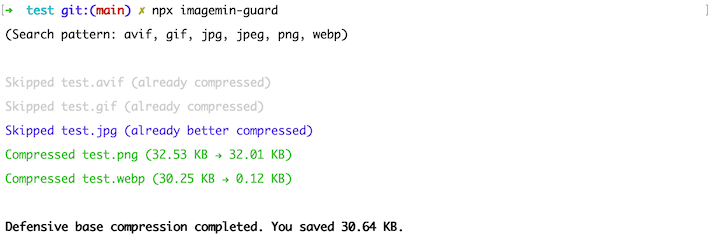
- Green: The image file has been compressed.
- Cyan: The image file has been converted (HEIC/HEIF to AVIF).
- White (light gray): The image file has not been changed.
- Blue: The image file had already been compressed more effectively than the new result, and was therefore skipped, too.
Tip: Use --quiet to suppress these per-file lines and keep only the final summary.
Image Guard is a Node script that uses sharp under the hood.
Automated compression works by monitoring whether a given change list includes any PNGs, JPGs, GIFs, WebPs, or AVIFs (and HEIC/HEIF when opted in). It’s initiated by a Git hook. Only those images are compressed where there is an improvement. HEIC conversion uses heic-decode for patent-free decoding and sharp for lossy AVIF encoding (quality 80). With --staged, as in the hook, the processed images are staged, too, so they’re committed along with the change that included them.
Compression removes metadata, except for what affects how an image looks: its orientation, its color profile (unless that’s sRGB, which browsers assume anyway), CMYK color, and the bit depth of AVIF images.
PNG images with more than 256 colors are reduced to 256 colors (with dithering) where that makes them smaller and a comparison with the original shows no visible change. Other PNG images, like most photos, grayscale and 16-bit images, images with smooth gradients or small elements in rare colors, and images over 40 megapixels, are compressed losslessly, keeping their bit depth.
Animated PNGs (APNG) are skipped, as sharp would keep only their first frame.
Through this approach, though glossed over here, Image Guard makes up for what’s missing or complicated in other packages, namely easy, near-riskless, automatable, resource-friendly in-repo optimization.
To keep repeat runs fast, Image Guard remembers which images it has already processed (compressed, or found not to shrink any further) by their content, and skips them in later runs. This also protects JPG and GIF images from being re-encoded over and over. An image is processed again as soon as its content changes, and all images are when the compression settings or the underlying image libraries change (as through an update).
The record is kept in node_modules/.cache/image-guard of the project being processed, or—where there is no node_modules folder, as is common with npx—in the per-user cache folder (~/Library/Caches/image-guard on macOS, %LOCALAPPDATA%\image-guard\Cache on Windows, and ~/.cache/image-guard elsewhere). The IMAGE_GUARD_CACHE_DIR environment variable sets a different folder—for example, to persist the record in CI. Deleting the folder, or using --no-cache, makes Image Guard process all images again.
You use Image Guard when you need a simple, automatable, robust solution to compress images in a way that limits unnecessary image payload right from the start, in your repositories, and that reduces the risk that entirely uncompressed images go into production.
As Image Guard compresses near-losslessly, there’s little risk of quality issues from compression. Repeat runs don’t degrade quality further, even when the record of processed images is bypassed or cleared.
Image Guard is no substitute for image fine-tuning and micro-optimization. That’s difficult to do in an automated fashion, because this type of compression requires balancing quality and performance and is context-dependent. In its most extreme form, when maximum quality at maximum performance is required from each graphic, micro-optimization is even challenging to do manually.
That is, micro-optimization still needs to be taken care of through other means, whether manually or through tools. Image Guard just solves the problem that images are checked in or go live that are not compressed at all.
To check how a change affects speed, memory, and compression, run the benchmark on any local folder with images:
npm run benchmark -- ~/ProjectsThe benchmark copies a deterministic sample of the images (honoring .gitignore) to a temporary folder, runs Image Guard on fresh copies of it several times (each without a record of processed images), and reports the median time, peak memory, and bytes saved. Your images are not modified.
--runs <n>sets the number of runs (default: 3).--sample <n>sets the approximate sample size (default: 300). Each format is sampled in proportion to its share, with at least 10 files per format where available.--savesaves the result as the baseline (benchmark/baseline.json, ignored by Git), which later runs on the same sample compare against.--profileadditionally compresses each image on its own, in dry mode, and reports the time per format and the slowest files.
To compare a branch with main, run the benchmark with --save on main, then without it on the branch. Differences of around 10% can be noise; use more runs, and repeat a run on main, before relying on smaller ones.
Copyright 2019 sum.cumo GmbH
Copyright 2022 Jens Oliver Meiert
Licensed under the Apache License, Version 2.0 (the “License”); you may not use this file except in compliance with the License. You may obtain a copy of the License at
http://www.apache.org/licenses/LICENSE-2.0
Unless required by applicable law or agreed to in writing, software distributed under the License is distributed on an “AS IS” BASIS, WITHOUT WARRANTIES OR CONDITIONS OF ANY KIND, either express or implied. See the License for the specific language governing permissions and limitations under the License.
You might like some of my other work:
- Optimization tools: hihtml · HTML Minifier · CSS Dedup · Image Guard · more
- Defense tools: AWAGAM TLD, Domain, and URL Blocker · Middleman Alerter · New Tab Traffic Randomizer · Searcher · more
- Resources for quality web development: Articles · Books · News · Terminology