Tournament execution
This software is designed to position you in front of the main referee by default. In this setup, the red team will be on your left, and the white team on your right. However, there are instances where a different angle at the shiaijo might be required. The software offers customization options to adjust the view and switch team and/or color positions.
Swap colors This feature enables you to switch between red and white colors.

Swap teams You can use this function to reverse the positions of the teams from left to right.

Feel free to experiment with both buttons until you find a visual layout that suits you best. It's important to note that these changes are purely visual and do not impact any stored data.

Another customization option allows you to alter the order of team members during the tournament. While this feature is not standard and should not be used in official tournaments, it can be beneficial for training events within your club.
Swap members With this function, you can rearrange the order of team members.

Using this feature will affect member order for all upcoming matches but will not retroactively change completed matches.

Once all matches are set up and the tournament commences, it's essential to keep track of all scores. Adding a score is straightforward: simply select the appropriate spot with your mouse (or touchscreen) and choose the score from a menu.
To add faults, locate a small rectangle near the score. Clicking on it will bring up a menu where you can add a fault. When two faults are added, a hansoku point will be automatically assigned to the opposing competitor.

Tip: You can input scores from outside to inside or from center to outside; both methods are equally effective. The first method is considered standard and recommended by the European Kendo Federation, while the second method is demonstrated in various examples. Be careful, as if you choose the second method, the system will set automatic hansokus to the outer position if no other score is set yet.
Once the time expires or one competitor earns two points, the match must conclude.
Click on the finish button to end the match and proceed to the next one.
Finish Marks the selected match as completed.

Tip: You can also end a match by pressing the
[Enter]key on your keyboard.
If both competitors have an equal score at the end of the fight, the system will automatically label it with an X.
If you accidentally finish a fight but wish to reverse this action, simply click on the finish button again to remove
its finished status.
In addition to other software views, there is an option for filtering matches. Enter any letters, and matches where a competitor's name or last name, team name, or club name matches your filter will be displayed.
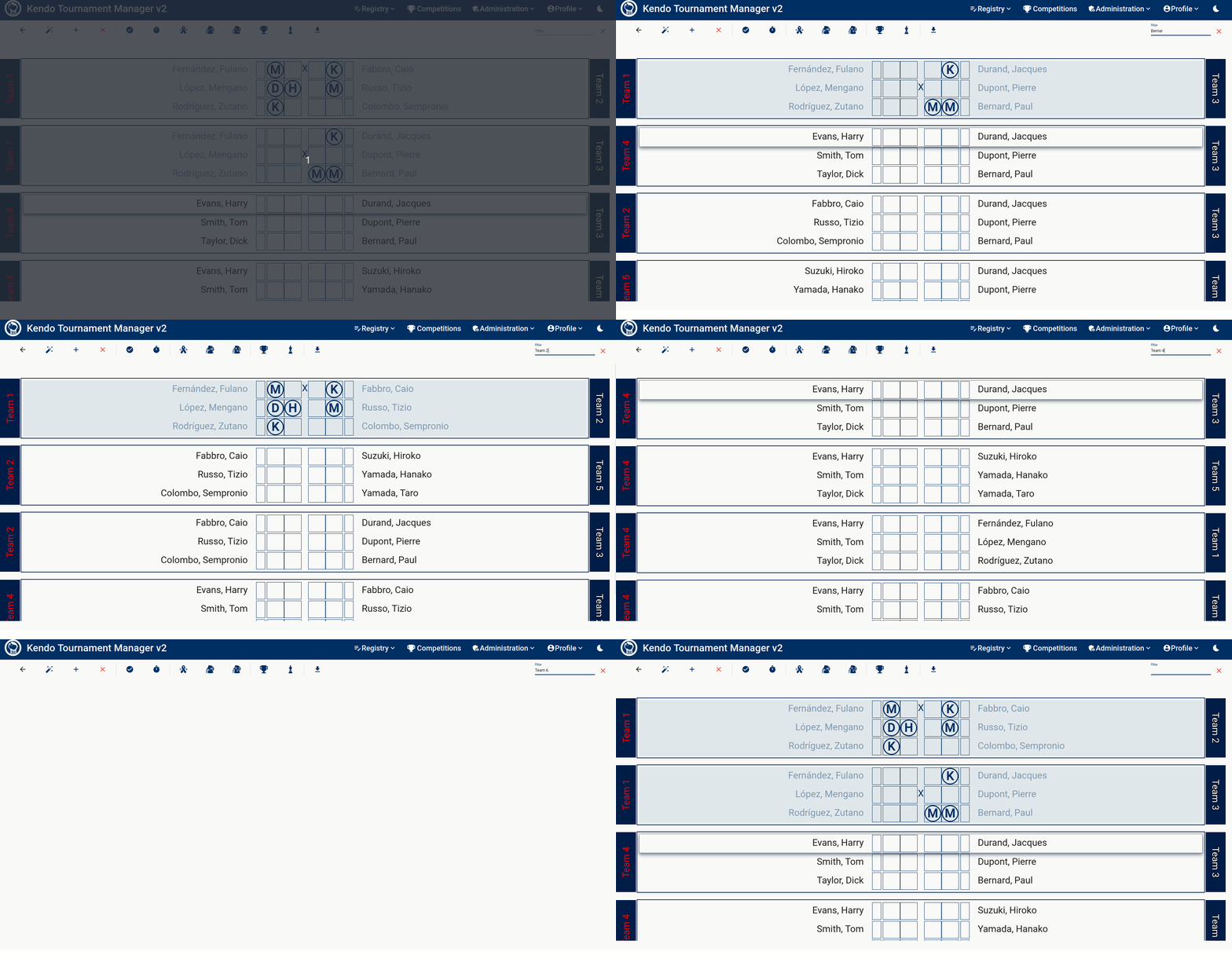
Please, check this section.
In certain tournaments, such as leagues or championships, determining a clear winner is essential. When two teams share the same ranking and hold the top position in a league or championship group, an additional match must be arranged to determine the ultimate victor.
Once all scheduled matches have concluded and the rankings are displayed, an option to organize extra matches to break any ties that may exist will be provided.
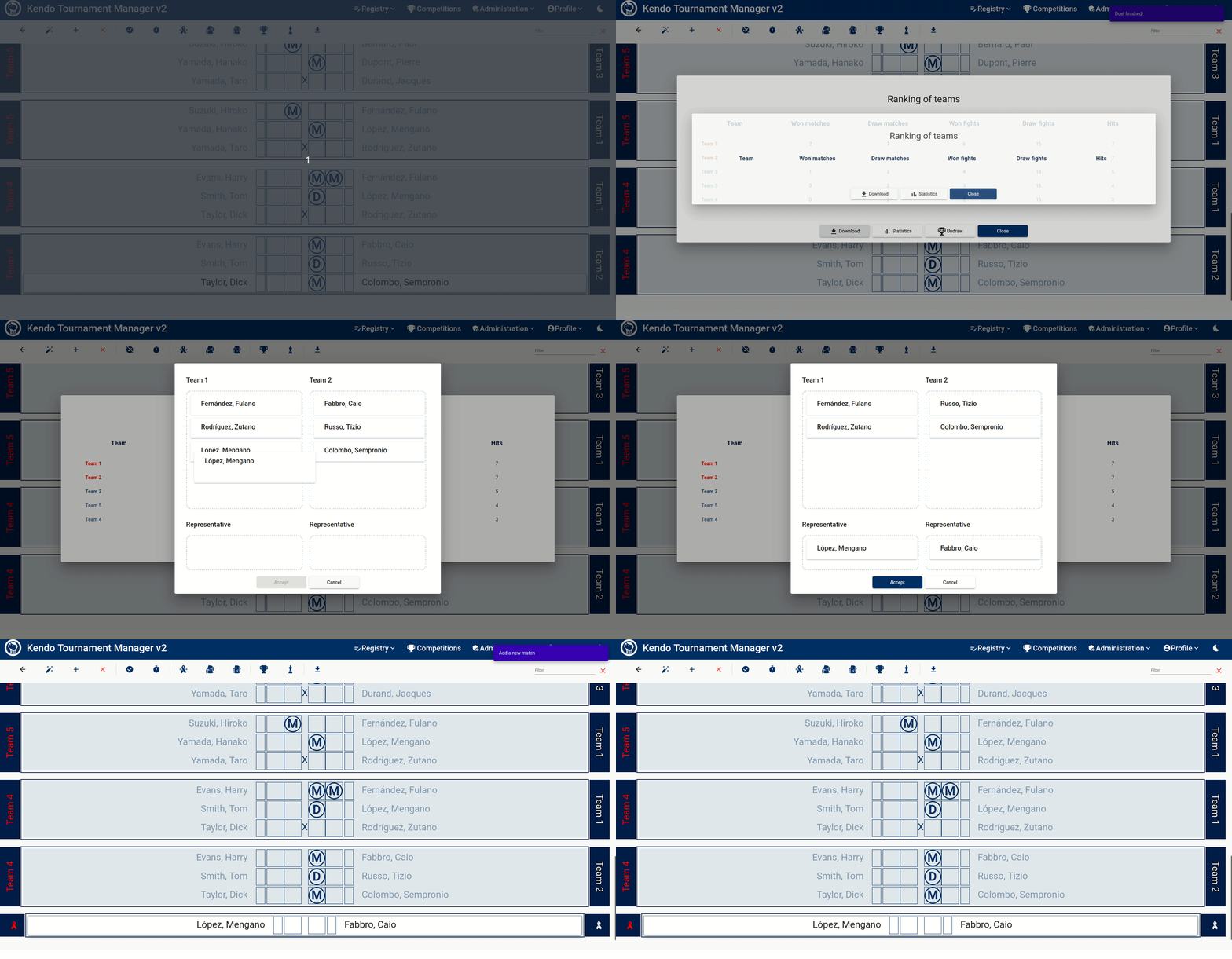
Each participating team selects one representative to compete in a match that determines the winning team, referred to as daihyōsen. The daihyōsen is a single-point contest, where the first competitor to score a point is declared the winner, and there is no time limit imposed. Sometimes this is also called Golden Point.
Tip: It is important to note that these daihyōsen matches do not contribute towards a competitor's statistics in the same manner. If a competitor wins one or more of these special matches, their ranking will be marked with an asterisk on the board.
In cases where multiple teams are involved in a tie, several matches will need to be generated to resolve the situation. The system is designed to assist in creating all necessary tie-breaking matches efficiently.
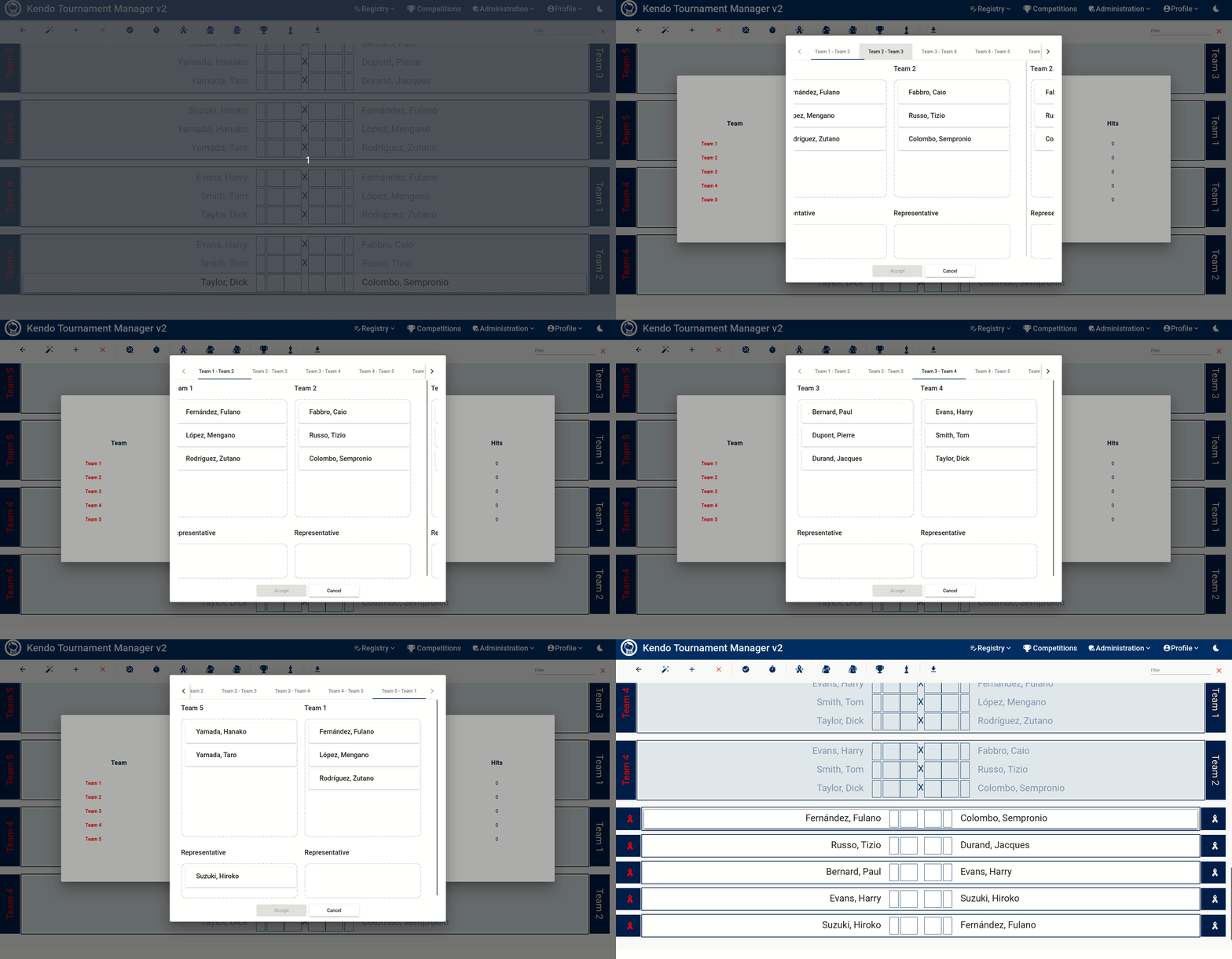
For instance, if all teams find themselves in a deadlock situation, a series of matches will be arranged accordingly. Even after these initial tie-breakers are resolved, should new ties emerge, additional matches will be organized.
This software comes equipped with a timer feature for each match.
By selecting the timer button, users can access and utilize this function effectively.
Timer Use this feature to open or close a timer for each match.
The timer assigned for the selected match will then become visible on screen.

The default match duration will be displayed, but you have the option to adjust the time by adding or subtracting it, providing additional flexibility.

Tip: You can open or close the timer by pressing
[t]key.
The timer changes color as the match nears its end, with digits turning yellow or red to indicate proximity to 00:00
and alert you to the approaching conclusion.
The time of each match is recorded upon completion, allowing you to revisit any match and view the timer.
Hovering over a score will reveal its corresponding time information.
Tip: You can control the timer by starting/stopping it with the
[Space]key and finishing the match with[Enter]. Reset the timer by pressing[Home]or[Backspace], while closing it can be done using[Esc].
An alarm will sound when a match reaches its designated time limit to notify you.
You have the flexibility to reposition the timer at any point in time. Simply drag either of the two horizontal bars located at the top of the timer using your mouse or finger to change its position.

By utilizing this timer, additional statistics will be generated for competitors as it tracks various data such as match duration and scoring times.
In the event that scores have been incorrectly entered into the system, resulting in erroneous team assignments for the subsequent phase of the championship, it is possible to rectify the tree by following these steps:
- Correct any inaccuracies in the scores.
- Remove any matches generated within the incorrect group.
- Access the bracket designer and select the option to recalculate the composition of teams within the groups.
- Complete the most recent match to proceed with the tournament.

 Created by: softwaremagico